You’ve likely seen webpages and picdumps everywhere, with goofy, ridiculous, and funny animated GIFs. Here’s how you can have some fun by making your own in a matter of minutes, using your favorite Youtube videos and Photoshop.
While animated GIFs may be pretty useless, they can be funny and fun to make. See what you can do with your favorite Youtube videos and Photoshop, and a surprisingly little time.
Downloading and Converting a Youtube Video
Youtube video converters are freely available online. Find an appropriate video on Youtube and take note of the URL in your browser’s location bar.
Zamzar.com is a decent online-only tool for video conversion. Simply input your Youtube video URL, and you can have your file emailed to you. You will have to give your email and agree to Zamzar’s terms of service. If you don’t like this, there are a number of ways to download and convert Youtube videos, including conversion apps for Windows, like SUPER, or WinFF. Zamzar.com is the simplest way, however, to ensure you get your video in the correct filetype.
Navigate to the ”Download Videos” tab, and paste in your URL for your Youtube video. Make sure your video file is MOV. Other filetypes can cause problems with this process. Input your email address, and click convert. Zamzar will email you a download link for your converted file.
Importing Converted Videos into Photoshop
Open Photoshop, likely the best tool for importing video frames and exporting them as a GIF.
Edit: GIMP users rejoice! Commenters have pointed out there are animation plugins capable of doing this sort of work. Check out the Gimp Animation Plugin (GAP) tutorial, and check out the plug-in here. Keep reading to see how Photoshop tackles this problem!
For 64 bit operating system users, you will likely encounter this frustrating error if you have the 64 bit version of Photoshop CS5 installed. If you are using an older 32 bit version of Photoshop or have the current one installed on your 32 bit operating system, you’ll not encounter this frustrating problem.
In your 32 bit version of Photoshop, navigate to File > Import > Video Frames to Layers.
Open your converted file in the subsequent dialog box. If you have more than one version, remember that MOV files are one of the best to use for this import.
You should see a preview of your video. Pick “Selected Range Only” to pick selected areas of the footage you wish to use for your animation. Move the cursor on the preview video and shift+drag to pick the piece of video you want to import. Importing large videos is not recommended, and Photoshop also has an upper limit of 500 frames.
Make sure that “Make Frame Animation” is checked on, and click OK.
Creating and Editing Animation from Your Imported Video
Your file may appear as a simple Photoshop document, but check in your layers.
Every frame in your selected region has been exported to a layer, complete with animation information. Let’s check that info out next.
Navigate to Window > Animation to open the Animation panel.
This panel is a simple window, noting every frame in the movie and how long each frame delays for. Since we imported from a movie the way we did, most of the work is done for us already. If you don’t see your frames already keyed up, it is far quicker to reimport than create an animation with 100 frames.
Chances are you’ve imported far more frames than you want to use for your animation. Locate the first frame you want to use in the Animation panel, and pick the frame before it.
Navigate back to the first frame, hold down shift, and pick that first frame, selecing all the frames you wish to trim out.
Click the
icon to delete the selected frames from the animation. Click “Yes” to proceed.
Do the same for all frames you don’t want, including those that are included after your intended final frame.
The
will allow you to test your animation in Photoshop. It may run slowly, as Photoshop can struggle to animate video well on some computers. Don’t let this discourage you, as your GIF will run better once it is rendered and in a browser.
Navigate to File > Save for Web & Devices.
Here, you’ll get the program that will allow you to export the frames to your animated GIF. It automatically builds your color table, and does all the hard work for you of creating individual frames.
Make sure that you set your “Looping Options” to “Forever,” then click “Save” to save your image wherever you care to leave it.
Your result will be a glorious GIF movie ripped from practically any video Youtube hosts.
Have questions or comments concerning Graphics, Photos, Filetypes, or Photoshop? Send your questions to ericgoodnight@howtogeek.com, and they may be featured in a future How-To Geek Graphics article.
Tuesday, March 15, 2011
How To Make a Youtube Video Into an Animated GIF - How-To Geek


Tuesday, October 5, 2010
What’s the Difference Between JPG, PNG, and GIF?
As we keep building on old image technology, types of file formats keep piling up, each with their own nuances and uses. JPG, PNG, and GIF have become the most common of these because of their compatibility with modern web browsers, broadband speeds, and the needs of average users. But what sets them apart from each other?
JPG
JPG was a filetype developed by the Joint Photographic Experts Group (JPEG) to be a standard for professional photographers. Like the method ZIP files use to find redundancies in files to compress data, JPGs compress image data by reducing sections of images to blocks of pixels or “tiles.” JPG compression has the unfortunate side effect of being permanent, however, as the technology for the file was created for storing large photographic image files in surprisingly small spaces, and not for photo editing.
JPGs have become the de facto standard image of the internet because they can be compressed so much. A typical JPG can be compressed at a ratio of anywhere from 2:1 to as high as 50:1, depending on your settings. Particularly back in the days of dial-up internet, JPGs were the only viable way to send image information.
However, because of the lossy nature of JPG, it is not an ideal way to store art files. Even the highest quality setting for JPG is compressed, and will change the look of your image, if only slightly. JPG is also not an ideal medium for typography, crisp lines, or even photographs with sharp edges, as they are often blurred or smeared out by anti-aliasing. It is common to see these things saved as JPG, simply because the filetype is so ubiquitous.
Close up of a high quality JPG.
Close up of a very lossy JPG.
The Joint Photographic Experts Group developed lossless JPG technology to combat this serious problem of quality degradation. However, because of dial-up speeds and general lack of interest in high quality non-degrading files, the JPG-LS standard never caught on.
It is possible to download plugins that allow users to open and save the lossless JPG2000, and some programs, like Apple’s Preview application, can read and save JPG2000 directly out of the box.
JPGs support 24-Bit RGB and CMYK, as well as 8-bit Grayscale. I personally do not recommend using CMYK color spaces in JPGs. It’s also important to note that Grayscale JPGs do not compress nearly as much as color ones do.
GIF
GIF, like JPG, is an older filetype, and one generally associated with the internet as opposed to photography. GIF stands for “Graphics Interchange Format” and employs the same lossless LZW compression that TIFF images use. This technology was once controversial (for patent enforcement issues) but has become an accepted format since all patents have expired.
Close up of an 8-bit color GIF.
GIF is by nature an 8-Bit color file, meaning they are limited to a palette of 256 colors, which can be picked from the RGB color model and saved to a Color Look Up Table, or CLUT. There are, however, standard color palettes, like the “Web Safe” palette.
Apart from support for transparency, GIF also is supports animations, limiting every frame to 256 preselected colors.
While GIF is not lossy like JPG, conversion to 8-Bit color distorts many images, using dither filters to optically blend, or “diffuse,” colors, similar to halftone dots or pointilism. This can radically alter an image for the worse, or, in some cases, create an interesting effect.
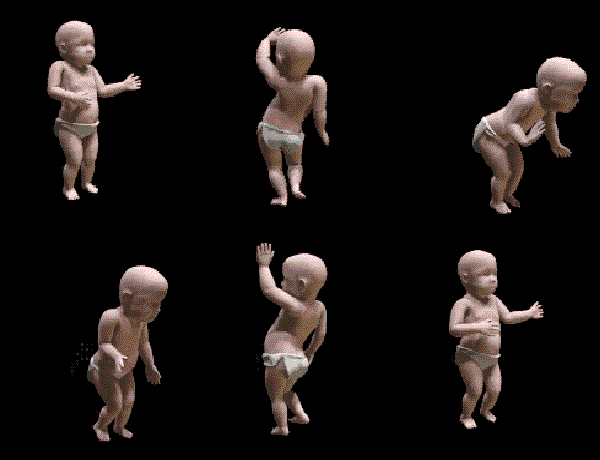
GIF is not ideal for modern photography, nor image storage. At small sizes with very limited color tables, GIF images can be smaller than JPG files. But at most ordinary sizes, JPG compression will create a smaller image. They are largely out of date, useful only to create dancing babies or to sometimes create rough transparencies.
PNG
PNG stands for Portable Network Graphics (or, depending on whom you ask, the recursive “PNG-not-GIF”). It was developed as an open alternative to GIF, which used the proprietary LZW compression algorithm discussed earlier. PNG is an excellent filetype for internet graphics, as it supports transparency in browsers with an elegance that GIF does not possess. Notice how the transparent color changes and blends with the background. Right-click the image to see. This is actually one image that is on four different background colors.
PNG supports 8-bit color like GIF, but also supports 24-bit color RGB like JPG. They are also non-lossy files, compressing photographic images without damaging image quality. PNG tends to be the biggest of the three filetypes and isn’t supported by some (usually older) browsers.
Which to use?
From left to right, these files are: 24-Bit JPG Compressed, 8-Bit GIF, 8-bit PNG, Full Quality 24 Bit JPG, and 24-Bit PNG. Note that the file sizes increase in this same direction.
PNG is the largest image type for bigger images as it contains unneeded information for transparency in an extra channel. 8-Bit PNG is an option, but GIF is smaller. Neither one are good options for photography, as JPG is much smaller than lossless PNG with only minimal loss of quality. And for storage of high resolution files, JPG compresses to tiny proportions, with quality loss only visible on close inspection.
In short:
- PNG is good option for transparency and non-lossy, smaller files. Larger files, not so much.
- GIF is largely a novelty and only useful for animation, but can produce small 8-Bit images.
- JPG is still the king for photographs and photo-like images on the internet.
Image of Keizersgracht, in Amsterdam by Massimo Catarinella via Wikipedia, released under Creative Commons license. Derivative images available under the same license. I don’t care to know who created the dancing baby.




 Posts
Posts

