Showing posts with label iPad. Show all posts

Thursday, November 10, 2011

Hotspot Shield VPN for iPhone Offers Secure Browsing and Email on the Go via lifehacker.com

Media_httpcachegawker_ucqra

Hotspot Shield VPN for iPhone Offers Secure Browsing and Email on the Go iOS: Previously mentioned VPN service Hotspot Shield can already encrypt your browsing and keep you safe when using public Wi-Fi on your computer, but this morning the service announced a new mobile app for private and secure internet use wherever you use your iPhone, iPad, or iPod Touch.

Hotspot Shield for iPhone runs in the background at all times when the app is running, encrypting everything from SMS messages to emails and Twitter updates. The app also forces Safari to load sites as HTTPS when available, and protects all applications that use data, even those also running in the background. That protection comes with a price tag however. Hotspot Shield is free for 7 days, so you can try it and see if it works for you. After that, you'll have to sign up for a $0.99/month or $9.99/year subscription. If you're concerned about threats like Firesheep or you know how easy it is to sniff out passwords and cookies, you may want to give the app a try.

Hotspot Shield VPN | iTunes App Store

You can reach Alan Henry, the author of this post, at alan@lifehacker.com, or better yet, follow him on Twitter or Google+.

Posted via email from ://allthings-bare

Monday, October 17, 2011

Adobe Reader for iOS Now Available via lifehacker.com

Media_httpfastcachega_hbggq

Adobe Reader for iOS Now AvailableAdobe Reader for iOS Now AvailableiOS: Adobe has released an iOS version of its popular PDF reader for iOS as a universal app for both iPad and iPhone.

Like the desktop version, you can't edit files, but you can access encrypted ones, as well as search, bookmark and copy text to the clipboard. It also lets you share PDF files with other applications, email, and print via AirPrint. It's a free download.

Adobe Reader | iTunes App Store

Posted via email from ://allthings-bare

Saturday, March 12, 2011

How to: Make iMovie Work on Your old iPad (Tested Method) - iSmashPhone iPhone Blog

Imovie icon

There's been a tutorial floating around the internet that shows users how to get the new version of iMovie for iOS to work on their first-gen iPad. The problem is, it doesn't work with the new, universal version of iMovie.

Though we've found an older method (one that used to work to bring iMovie to the 3GS) and adjusted it for the first-gen iPad.

Heres how it works:

1) Download the App from the App Store direct to your iTunes account (on your computer). It's only $4.99.

2) You must now locate the iMovie IPA file on your computer. Go to:

            (User)>Music>iTunes>Mobile Applications > iMovie.ipa   

(Windows path may be slightly different, but the rest of the guide still works the same)

Imovie-08


3) Change the extension from .ipa to .zip.

4) Unpack your newly-created .zip file

5) Look in the folder called Payload, you will find iMovie.app. Right click and select "show package contents": 

Imovie-03


6) Within that, you will find a file called "info.plist" Open that with any text editor.

Imovie-04


7) Find the field called "UIRequiredDeviceCapability" delete "Front-facing-camera" as shown below:

                a)

Imovie-05a


            b) 

Imovie-05b


This basically means that your device no longer needs a front-facing camera to work.


8) Navigate back out to your iMovie folder and compress the objects as shown: 

Imovie-06

9) The file will default to the name Archive.zip. Change that back to iMovie-iPad.ipa (it's original filename, before we started messing around with it)


           a)

Imovie-07


         b)

Imovie-08


Finally, sync your iPad:

Photo


Congrats, you now have iMovie on your old iPad.

Share5   5 Share558 Share0 Share0 Share569

Related Posts with Thumbnails

Subscribe to this feedSave to del.icio.us (1 save)Email thisDigg This!Share on FacebookStumble It!

Posted via email from ://allthings-bare

Monday, February 7, 2011

Integrate Dropbox with Pages, Keynote, and Numbers on iPad | Techinch

Integrate Dropbox with Pages, Keynote, and Numbers on iPad

The iWork apps are some of the best apps on iPad, and each show just how powerful a touchscreen device can be with the most basic of computing functions: creating and editing documents, spreadsheets, and presentations. They each work quite well with their respective Microsoft Office counterparts also. In fact, there’s not much to dislike about the iWork apps.

Except for one thing: importing and exporting files. You can open documents from email attachments, download them from websites, or import them from other apps like Dropbox. Once you’ve opened your file in Pages, Keynote, or Numbers on iPad, though, you can only send it via email, upload it to a WebDAV server or Apple’s iDisk service, or wait to sync it with iTunes on your computer. Most other iOS office apps don’t offer nearly as many features as the iWork apps, but they do offer deep integration with Dropbox which makes it easy to view and edit your documents no matter where you are. Dropbox is the most popular file sync and sharing solution, and makes it absolutely painless to share folders with anyone around the world and keep your computers in sync. That is, computers and applications that integrate with Dropbox.

However, you don’t need to give up on using Dropbox with iWork apps on iPad. Today we’re going to look at how you can enable WebDAV compatibility on your Dropbox account to let Pages integrate nearly the whole way with Dropbox. It’s not a perfect solution, but it’s much better than the default setup. So let’s get started!

Add WebDAV to Your Dropbox With DropDAV

WebDAV was one of the first standards for file syncing with a server, but it’s not used nearly as much nowadays. Dropbox doesn’t include support for WebDAV syncing, using instead their own syncing system to keep your Dropbox folder synced between the cloud and your computers. Third-party developers have filled in the gaps, and now with several new web services you can add WebDAV support to your Dropbox account.

There are actually two main services that add WebDAV support to your Dropbox account: DropDAV limited, an opensource app powered by Google App Engine, and DropDAV, a premium WebDAV for Dropbox offering. We’re going to use DropDAV in this example, but both services work very similarly. The biggest difference is that the open source DropDAV limited only lets you upload or download files 1Mb in size or smaller, where DropDAV doesn’t have a file size limitation but does charge for premium accounts if your Dropbox is larger than 50Gb.

To get started, just head over to DropDAV’s site and sign in with your Dropbox email and password to add WebDAV to your account. If your Dropbox account is smaller than 50Gb, you’ll never need to pay; otherwise, you’ll get a free 14 day trial before you’ll have to setup a premium account. As soon as your account is activated, you’ll be ready to add it to your iWork apps. Alternately, you can login to your account and change your email and password to make it different from your Dropbox account if you wish.

sshot-2011-02-02-[2]

Dropbox, meet iWork

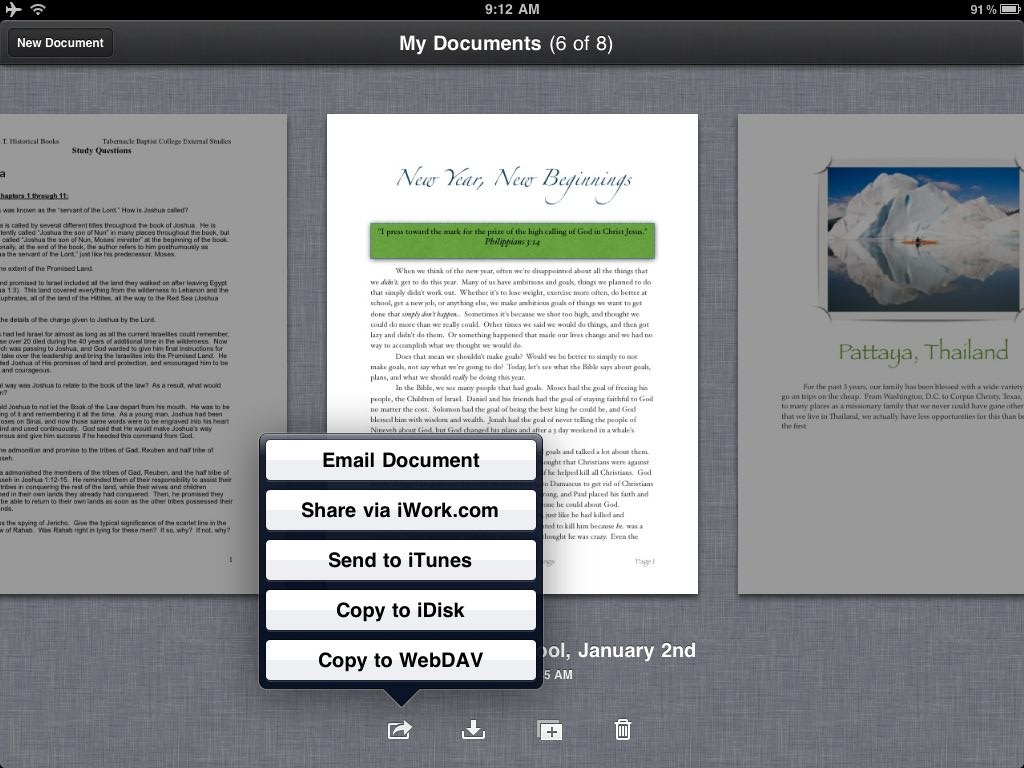
You’re now ready to add your new Dropbox WebDAV account to your favorite iWork apps. Open Pages, Numbers, or Keynote on your iPad, then tap the export button under a document and select Copy to WebDAV.

Photo Feb 02, 9 37 41 AM

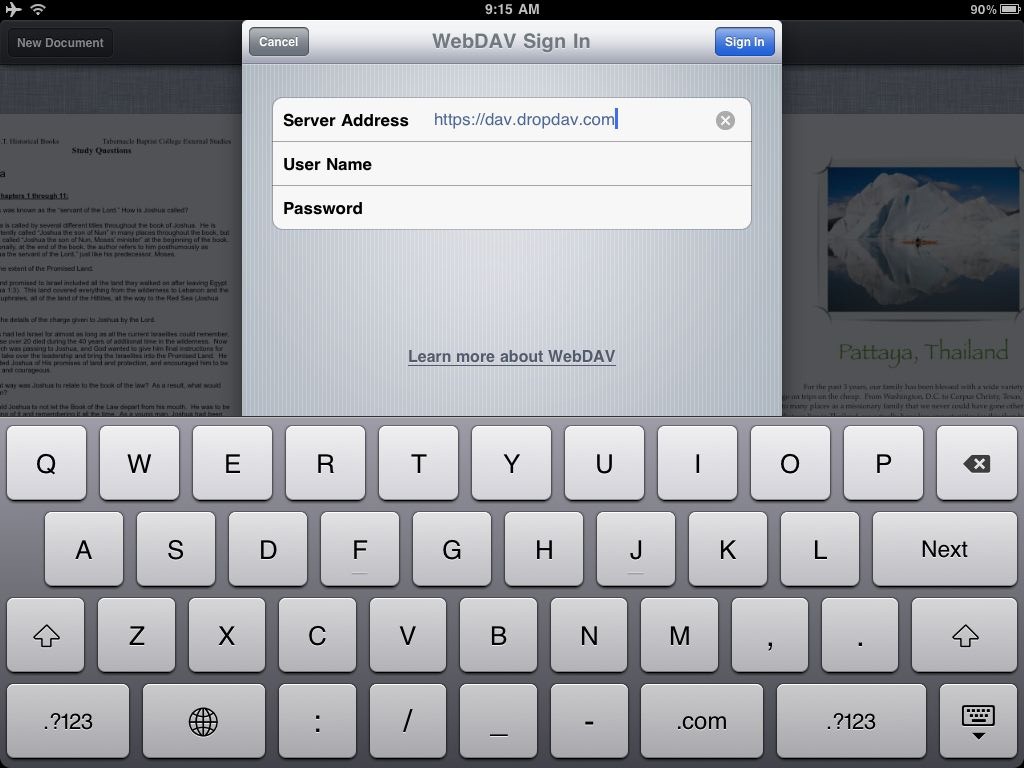
Enter your DropDAV server address, then enter your Dropbox username and password. In general, your server address will be https://dav.dropdav.com/, then your username is your Dropbox account email address and your password is your Dropbox password or the password you added to your DropDAV account. Once you’ve added an account, you can keep using it from that app unless your password changes, though you will need to add it individually to each iWork app you wish to use with Dropbox.

Photo Feb 02, 9 38 13 AM

Uploading Documents to WebDAV from iWork Apps

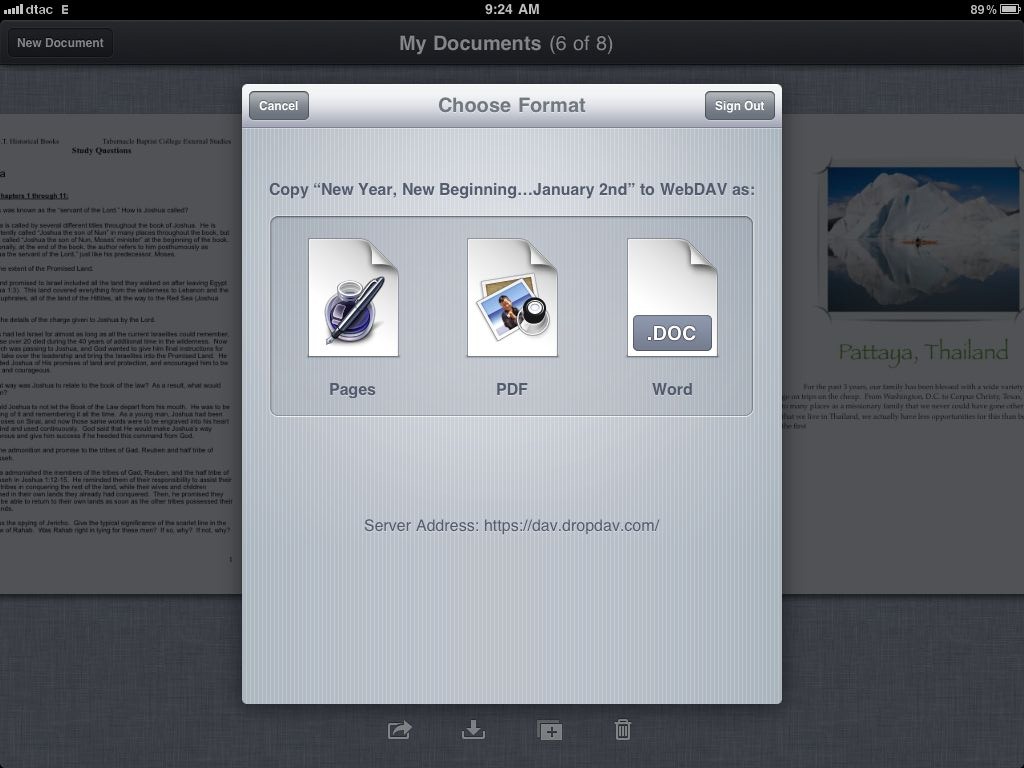
You’re now ready to start uploading documents or downloading documents from this app. As soon as your account is verified, you’ll be asked to select what format to upload. And, the next time you upload a document via WebDAV, you’ll just see this screen since your WebDAV server has already been added. In each app, you can export files as the default Pages, Keynote, or Numbers format, respectively, in their respective Microsoft Office Formats, or as PDF. If you plan to edit the files on your iPad again or in iWork on a Mac, I’d recommend always saving a copy in the native format, as well as in the format you wish to share. Either which way, you can only export as one format at once.

Photo Feb 02, 9 39 02 AM

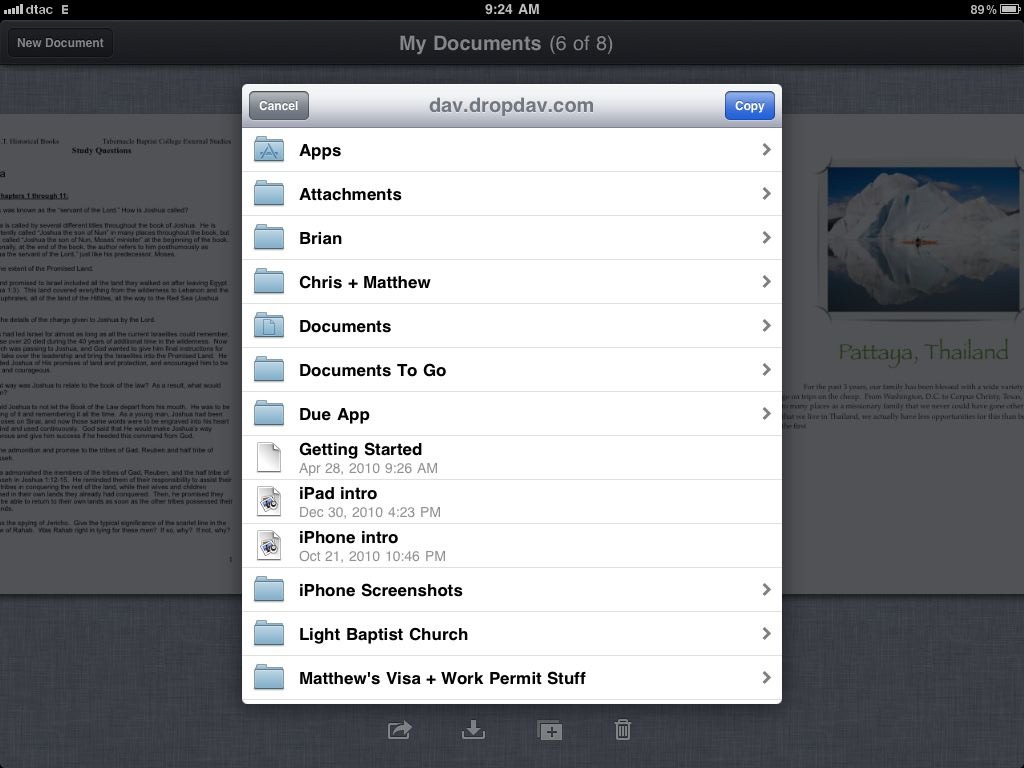
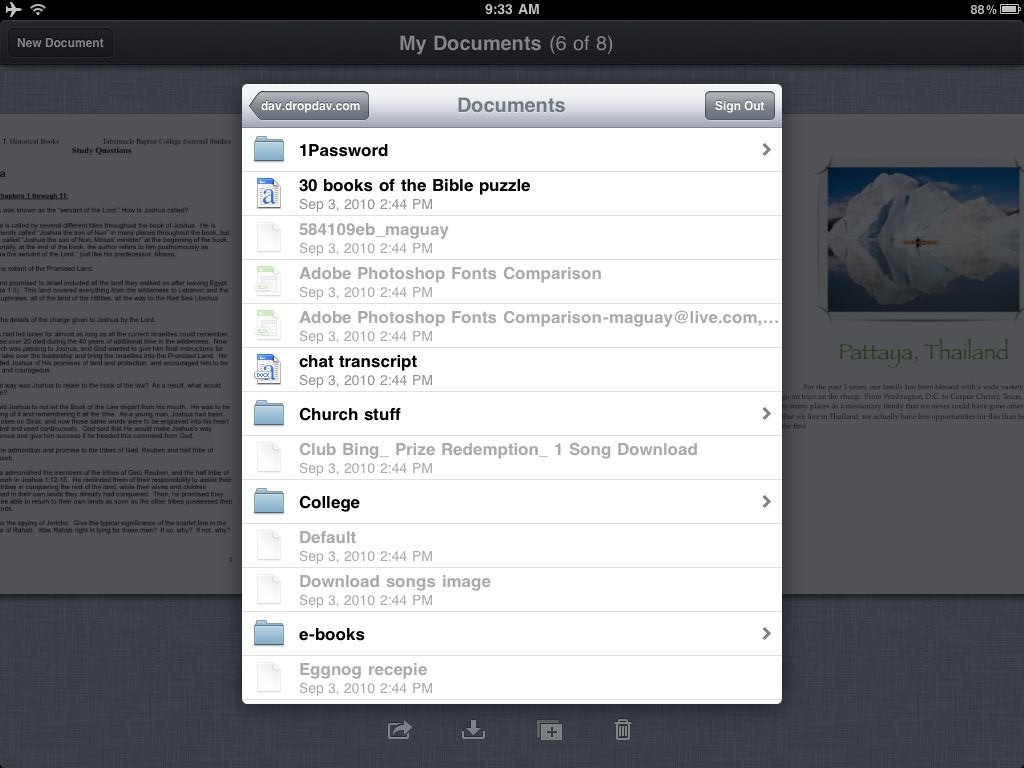
Now, the app will connect to your Dropbox account. Seconds later, you’ll see all of your folders listed. Browse to the folder you want to save the document in, then tap Copy to upload it.

Photo Feb 02, 9 39 53 AM

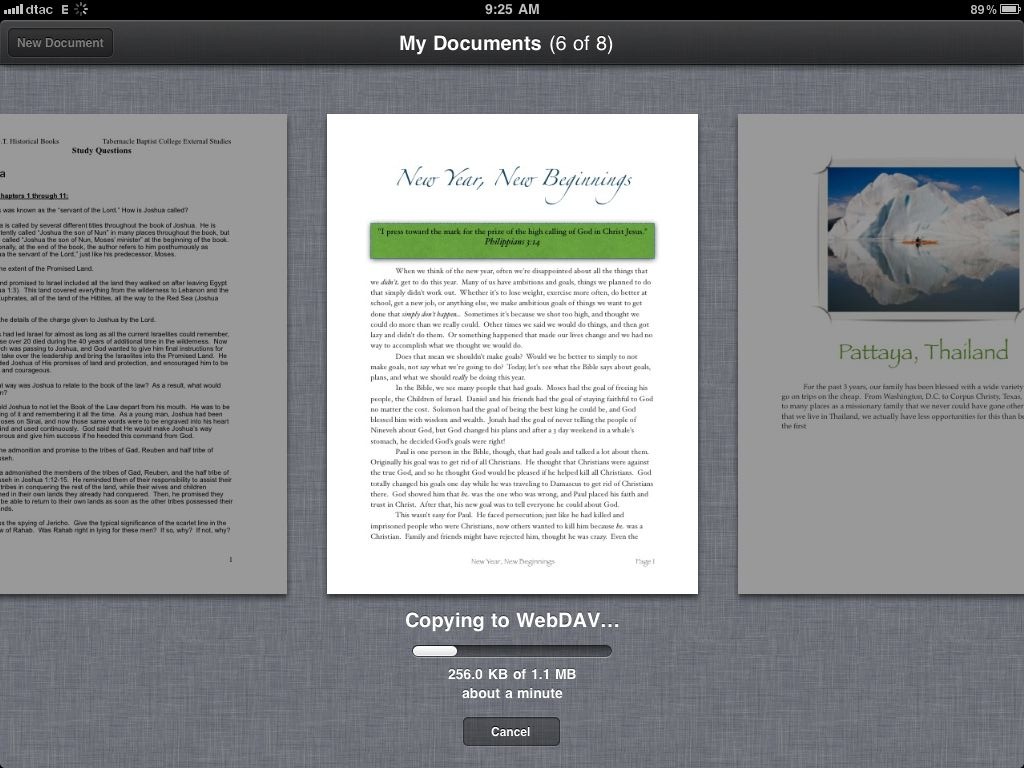
Your iWork app will then convert your document to the correct format and upload it to the server. It may take a few minutes, depending on your document size and your connection speed. Once it’s uploaded, though, you can access it from your computer, online Dropbox account, or directly from your iWork app.

Photo Feb 02, 9 40 15 AM

Download Documents from WebDAV to iWork Apps

sshot-2011-02-02-[6]

Speaking of which, now that you’ve added Dropbox as WebDAV in your iWork app, you’ll be able to open and edit files from your Dropbox that you’ve saved from iWork or any other Office app. From the iWork app home screen, tap the download button and select Copy from WebDAV to get started opening files from Dropbox.

If you’ve already added your Dropbox account, you’ll automatically see all of your folders and files from Dropbox listed. Browse to the file you want to edit, and then tap it to download the file to your device. Here’s the formats that each iWork app supports, from the Apple iWork for iPad support site:

iWork App Importable File Types
Keynote .key .ppt .pptx .pps .ppsx
Pages .pages .doc .docx .dotx .txt
Numbers .numbers .xls .xlsx .xlt .xltx .xlsm .xla .csv


Photo Feb 02, 9 40 41 AM

Your file will start downloading, showing at first the file format logo. Again, it may take a while if your file is large, but for most documents and spreadsheets, it only takes a few seconds. Once it’s downloaded, you’ll see a thumbnail of the document in your file list just like you would from any other document.

Photo Feb 02, 9 40 55 AM

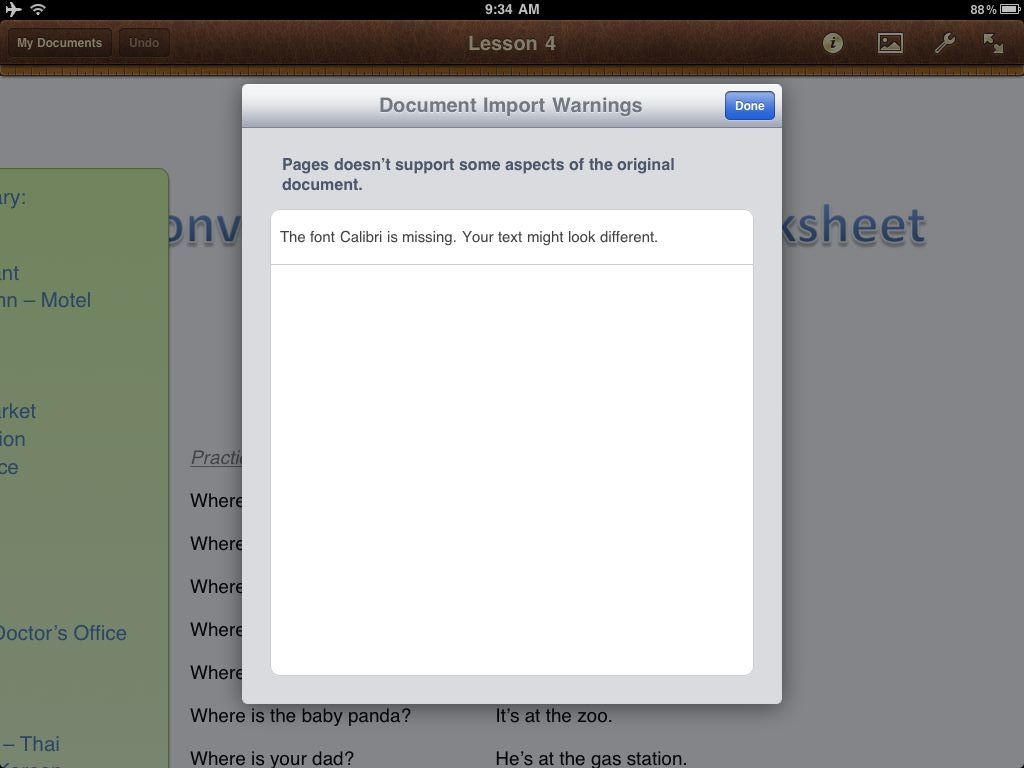
Most files open great once their imported, though you may see warnings about any parts of the documents that aren’t supported. For example, this document used the Calibri font, so Pages substituted it with Helvetica. You may have to tweak documents a bit to work best across platforms, but for the most part it’s seamless working with documents from any common Office app.

Once you’ve edited a document, you can just repeat the steps above to re-upload it to your Dropbox. It’s still not full Dropbox integration, but it’s way better than the default setup!

Photo Feb 02, 9 41 06 AM

Removing DropDAV From Your Account

Both DropDAV services use Dropbox’ API to integrate with your account and use SSL connections, so your accounts and personal information should be secure when using them. If you ever want to remove them, however, you can always delete your DropDAV account or deactivate from your Dropbox Apps list in your Dropbox settings. You can also try both out and change to the one that suites your needs best.

sshot-2011-02-02-[4]

Conclusion

This is yet another example of how third party developers and an ecosystem of apps and services can make a product even more useful. With WebDAV access to your Dropbox account, the iWork apps on iPad are much more useful. Now, you can always access all of your Dropbox files and upload files to the folder you want wherever you are.

Links:

Download the iWork Apps for iPad: Pages, Keynote, and Numbers [$9.99 each | iPad only]

Signup for a Free Dropbox Account

Add DropDAV to your Dropbox

Posted via email from ://allthings-bare

Friday, February 4, 2011

How to Integrate Dropbox with Pages, Keynote, and Numbers on iPad

The iWork apps are some of the best apps on the iPad, and each show just how powerful a touchscreen device can be with the most basic of computing functions. In fact, there’s not much to dislike about the iWork apps, except for one thing: importing and exporting files.

You can open documents from email attachments, download them from websites, or import them from other apps like Dropbox. Once you’ve opened your file in Pages, Keynote, or Numbers on iPad, though, you can only send it via email, upload it to a WebDAV server or Apple’s iDisk service, or wait to sync it with iTunes on your computer. Most other iOS office apps don’t offer nearly as many features as the iWork apps, but they do offer deep integration with Dropbox which makes it easy to view and edit your documents no matter where you are. Dropbox is the most popular file sync and sharing solution, and makes it absolutely painless to share folders with anyone around the world and keep your computers in sync. That is, computers and applications that integrate with Dropbox.

However, you don’t need to give up on using Dropbox with iWork apps on iPad. Today we’re going to look at how you can enable WebDAV compatibility on your Dropbox account to let Pages integrate nearly the whole way with Dropbox. It’s not a perfect solution, but it’s much better than the default setup. So let’s get started!

Add WebDAV to Your Dropbox With DropDAV

WebDAV was one of the first standards for file syncing with a server, but it’s not used nearly as much nowadays. Dropbox doesn’t include support for WebDAV syncing, using instead their own syncing system to keep your Dropbox folder synced between the cloud and your computers. Third-party developers have filled in the gaps, and now with several new web services you can add WebDAV support to your Dropbox account.

There are actually two main services that add WebDAV support to your Dropbox account: DropDAV limited, an opensource app powered by Google App Engine, and DropDAV, a premium WebDAV for Dropbox offering. We’re going to use DropDAV in this example, but both services work very similarly. The biggest difference is that the open source DropDAV limited only lets you upload or download files 1Mb in size or smaller, where DropDAV doesn’t have a file size limitation but does charge for premium accounts if your Dropbox is larger than 50Gb.

To get started, just head over to DropDAV’s site and sign in with your Dropbox email and password to add WebDAV to your account. If your Dropbox account is smaller than 50Gb, you’ll never need to pay; otherwise, you’ll get a free 14 day trial before you’ll have to setup a premium account. As soon as your account is activated, you’ll be ready to add it to your iWork apps. Alternately, you can login to your account and change your email and password to make it different from your Dropbox account if you wish.

sshot-2011-02-02-2_thumb


Dropbox, meet iWork

You’re now ready to add your new Dropbox WebDAV account to your favorite iWork apps. Open Pages, Numbers, or Keynote on your iPad, then tap the export button under a document and select Copy to WebDAV.

Photo-Feb-02-9-37-41-AM_thumb

Enter your DropDAV server address, then enter your Dropbox username and password. In general, your server address will be https://dav.dropdav.com/, then your username is your Dropbox account email address and your password is your Dropbox password or the password you added to your DropDAV account. Once you’ve added an account, you can keep using it from that app unless your password changes, though you will need to add it individually to each iWork app you wish to use with Dropbox.

Photo-Feb-02-9-38-13-AM_thumb


Uploading Documents to WebDAV from iWork Apps

You’re now ready to start uploading documents or downloading documents from this app. As soon as your account is verified, you’ll be asked to select what format to upload. And, the next time you upload a document via WebDAV, you’ll just see this screen since your WebDAV server has already been added. In each app, you can export files as the default Pages, Keynote, or Numbers format, respectively, in their respective Microsoft Office Formats, or as PDF. If you plan to edit the files on your iPad again or in iWork on a Mac, I’d recommend always saving a copy in the native format, as well as in the format you wish to share. Either which way, you can only export as one format at once.

Photo-Feb-02-9-39-02-AM_thumb

Now, the app will connect to your Dropbox account. Seconds later, you’ll see all of your folders listed. Browse to the folder you want to save the document in, then tap Copy to upload it.

Photo-Feb-02-9-39-53-AM_thumb

Your iWork app will then convert your document to the correct format and upload it to the server. It may take a few minutes, depending on your document size and your connection speed. Once it’s uploaded, though, you can access it from your computer, online Dropbox account, or directly from your iWork app.

Photo-Feb-02-9-40-15-AM_thumb


Download Documents from WebDAV to iWork Apps

sshot-2011-02-02-6_thumb

Speaking of which, now that you’ve added Dropbox as WebDAV in your iWork app, you’ll be able to open and edit files from your Dropbox that you’ve saved from iWork or any other Office app. From the iWork app home screen, tap the download button and selectCopy from WebDAV to get started opening files from Dropbox.

If you’ve already added your Dropbox account, you’ll automatically see all of your folders and files from Dropbox listed. Browse to the file you want to edit, and then tap it to download the file to your device. Here’s the formats that each iWork app supports, from the Apple iWork for iPad support site:

iWork App Importable File Types
Keynote .key .ppt .pptx .pps .ppsx
Pages .pages .doc .docx .dotx .txt
Numbers .numbers .xls .xlsx .xlt .xltx .xlsm .xla .csv

Photo-Feb-02-9-40-41-AM_thumb

Your file will start downloading, showing at first the file format logo. Again, it may take a while if your file is large, but for most documents and spreadsheets, it only takes a few seconds. Once it’s downloaded, you’ll see a thumbnail of the document in your file list just like you would from any other document.

Photo-Feb-02-9-40-55-AM_thumb

Most files open great once their imported, though you may see warnings about any parts of the documents that aren’t supported. For example, this document used the Calibri font, so Pages substituted it with Helvetica. You may have to tweak documents a bit to work best across platforms, but for the most part it’s seamless working with documents from any common Office app.

Once you’ve edited a document, you can just repeat the steps above to re-upload it to your Dropbox. It’s still not full Dropbox integration, but it’s way better than the default setup!

Photo-Feb-02-9-41-06-AM_thumb

Removing DropDAV From Your Account

Both DropDAV services use Dropbox’ API to integrate with your account and use SSL connections, so your accounts and personal information should be secure when using them. If you ever want to remove them, however, you can always delete your DropDAV account or deactivate from your Dropbox Apps list in your Dropbox settings. You can also try both out and change to the one that suites your needs best.

sshot-2011-02-02-4_thumb1

Conclusion

This is yet another example of how third party developers and an ecosystem of apps and services can make a product even more useful. With WebDAV access to your Dropbox account, the iWork apps on iPad are much more useful. Now, you can always access all of your Dropbox files and upload files to the folder you want wherever you are.

Download the iWork Apps for iPad: Pages, Keynote, and Numbers [$9.99 each | iPad only]

Signup for a Free Dropbox Account

Add DropDAV to your Dropbox

image

Techinch covers technology tips, reviews, and how-to articles, and it’s powered by the mighty writing skills of former How-To Geek writer Matthew Guay. You can keep up with his posts through RSS, Facebook, or Twitter. Original post republished with permission.

Posted via email from ://allthings-bare

Thursday, December 2, 2010

How to sync your iPad with Linux | Linux User

This article originally appeared in issue 94 of Linux User & Developer magazine.How to sync your iPad with Linux

Subscribe and save more than 30% and receive our exclusive money back guarantee – click here to find out more.

Even if you are not a technology buff, it’s hard not to notice how the iPad has taken over the world of gadgets. Before its launch, the iPhone and the iPod touch had a similar impact and they are visible just about everywhere you go. All of Apple’s portable devices use iTunes to synchronise their information with a computer, and iTunes is only available on Windows and Mac systems. So where does that leave Linux users like you and me? Thankfully it’s not a lost cause – let’s take a look at how you can get the maximum out of your fruit branded mobile device on an Ubuntu desktop setup. You’ll also be pleased to hear that all the solutions that we look at here will work on your Apple mobile device without the device requiring to be jailbroken.

You’ll have to forgive the obligitory disclaimer however – all the software and syncing solutions discussed in this article are not built or approved by Apple, and therefore cannot be guaranteed to work as intended. Now, on with the guide…

Required resources
libimobiledevice The project that allows you to sync your iPod, iPad, or iPhone to your Linux machine
Handbrake For converting videos from one format to another
Fuse File system This allows read-write access to your Apple devices

Installation

1. Getting libimobiledevice
Both Ubuntu 10.04 and 10.1 support the iPhone, iPod touch and iPad out of the box. This is using the libimobiledevice project, which is hosted here. You can visit the project’s website and download the source code, along with that of the supporting packages. Ready-made binaries for several popular distributions are also available from this website. However, the easiest way to get hold of the libimobiledevice packages is by using your distribution’s package management system. For example, Ubuntu Linux and openSUSE have the software in their official repositories. Ubuntu 10.04 and 10.1 users can skip the next step.

2. Installing on Ubuntu 9.10
Although Ubuntu 9.10 does not ship with support for the Apple devices, you can set things up reasonably easily. Launch the package source manager by going to System>Administration>Software Sources. Click on the Other Software tab and then on the Add button. Now add the line ‘ppa:pmcenery/ppa’ as the source. Save it and hit the Reload button to reload the repository information. Now launch the Synaptic Package Manager and install the package ‘libimobiledevice0’. Note that you will need to restart your computer for the installation process to complete correctly.

3. Installing libimobiledevice for everyone else
If you have landed on a computer which does not have libimobiledevice pre-installed and you can’t find it in your distribution’s binary repositories, you can always download the source release of libimobiledevice and compile it yourself. First, make sure that you have the development tools required for compiling packages installed. Download the source package from the libimobiledevice project website and extract it to a temporary location. Get into the source directory and execute the following commands:

./configure make sudo make install

4. Plug and play
When you have set things up, you should plug your iPad, iPod or iPhone into your Ubuntu computer. Connect it with the USB cable that you got with your device. When you plug it in, you should see two windows pop up, like the ones shown in the screenshot below, and your device’s icon appear on the Desktop. The two window panes will ask you which applications you want to use to view and manage the photos and the music on your device. The list that will appear depends upon what applications you have installed on your computer. If you see this screen, you should be in business. Let’s proceed and see how you can manage the music, photos, video and other data on your Apple device.

How to sync your iPad with Linux

An Apple iPad being detected and mounted in Linux

Continue to page 2 – working with your music

Linux User & Developer is the magazine for the GNU Generation
Click here to try 3 issues for £1

Posted via email from ://allthings-bare

Wednesday, November 24, 2010

MobileMe Freebie: Find My iPhone Walkthrough with Screenshots

main MobileMe Freebie: Find My iPhone Walkthrough with Screenshots

Apple recently announced the availability of its Find My iPhone service for those who upgrade to iOS 4.2 but do not have a MobileMe account. That’s right. No more $99 annual charge if you want to keep a close watch on your iPhone, iPod touch (4th generation), or iPad’s location. This feature has been particularly interesting to me since I was once mugged in San Francisco (surprisingly good timing considering the 3GS became available a month later). And, now that the Find My iPhone service is free from its MobileMe subscription-based clutches, I thought I’d walk you through the ins and outs of locating, locking, and wiping your iPhone from the comfort of your couch.

After upgrading my iPhone 4 to iOS 4.2, I followed Apple’s simple instructions to set up Find My iPhone. Two minutes later I was all set up and ready to start tracking my iPhone on a convenient Google Maps-based map.

If this is your first experience with MobileMe then the above map is what you see after signing in. After selecting your device you have the following options:

  • display a message over your current task
  • play a sound
  • lock the device with a 4 digit code
  • wipe (erase) everything on the phone

Below is an example of displaying a message that gets displayed on your iPhone’s display:

popup copy MobileMe Freebie: Find My iPhone Walkthrough with Screenshots

Once Apple has confirmed that the message was delivered, a confirmation email is sent to your MobileMe account’s email address. Note: The screenshot below is from a hot new email application named Sparrow.

email MobileMe Freebie: Find My iPhone Walkthrough with Screenshots

If you’d rather take things one step further, you can lock your iPhone and prevent unauthorized access.

Remotely locking your iOS device is easy. Just tell Find My iPhone that you’d like to “Lock” your phone. After entering a pin code twice the device locks within seconds. A confirmation email also arrives similar to sending a message.

lock and screenshot MobileMe Freebie: Find My iPhone Walkthrough with Screenshots

In addition to the Map view you can also choose Satellite and Hybrid views just like Google Maps.

satellite MobileMe Freebie: Find My iPhone Walkthrough with Screenshots

hybrid MobileMe Freebie: Find My iPhone Walkthrough with Screenshots

So, there you have it. The above walkthrough should give you a good idea of what to expect when you fire up the Find My iPhone feature for the first time on your desktop or laptop computer. If you’ve been thinking about buying an iPhone for yourself, you’ll be happy to know that you now get all these phone-tracking features for free.

I presume Apple is trying a new strategy to persuade people to sign up for the full MobileMe service. Releasing the Find My iPhone feature for free should get new visitors to me.com and, in theory, more paying customers. As soon as you begin typing your username and password on me.com, a large set of icons appear for email, address book, calendar, photos, iDisk, and Find My iPhone. It feels like a tease. After signing in you only have one of those features. This will leave newcomers asking the question, “What are those other icons for?”

It also makes sense that Apple make this iPhone-tracking service free, as Microsoft’s Windows Phone 7 handsets and select HTC-made Android phones offer similar services for free.

mobileme landing MobileMe Freebie: Find My iPhone Walkthrough with Screenshots

So, we want to know. Does the free Find My iPhone service make you more likely to pick up an iPhone this holiday shopping season? Sound off in the comments below!

Posted via email from ://allthings-bare