If you own an iOS device, you know that by default it only plays certain video formats. You probably have other video formats in your collection you’d like to add, and here we look at how to convert them to play on you iOS device.
There are a few different ways you can go about getting your videos converted to play with your iOS device. There’s no shortage of Commercial & Shareware products for this, but we’ll use free and Open Source software (mainly Handbrake). We’ll look at the basics for converting DVDs, ISO, and AVI video formats that aren’t compatible with your iOS device to the iTouch friendly MP4 / H.264 format.
For this article we’re using iTunes for Windows, an iPod Touch 4th Gen running iOS 4.1, and Windows 7 Ultimate 64-bit.
Rip DVDs & Convert to MP4 / H.264
First we’ll look at ripping a DVD using DVDFab then converting it using Handbrake. If you haven’t done so already download and install the latest version of DVDFab and Handbrake for PC (links below). The DVDFab HD Decrypter is always free, even after your trial period has ended. Also, for best results for removing copy protection from newer DVDs is to make sure you have the latest version of it.
After you’ve downloaded and installed both apps, pop your DVD into the drive, and for this part we’re going to use the Main Movie feature in DVDFab 8 to get only the main movie and not the extra features.
After DVDFab is finished removing encryption and pulling the DVD files, open Handbrake and select Source then DVD / Video_TS Folder.
Then navigate to the location of the ripped DVD and click OK.
Now on the left side of Handbrake you’ll have a list of Presets to choose from…select iPhone & iPod Touch.
The Presets will choose the final output settings that are appropriate for the iPod / iPhone. You can further tweak the settings as well to get your video how you like it. Make sure and select a destination for the final output file, for Container make sure it’s set to MP4, and H.264 for the Video Codec (which it should be by default).
After you have the video settings how you like them, click on the Start button at the top.
While the video is encoded, a command window opens so you can follow the progress if you want. The amount of time it takes will vary between system hardware and the size of the DVD. You’ll probably want to find something else to do or run it at night as it could take several hours to complete the conversion process.
After the conversion was finished of LOTR Return of the King, the file size was 1.71GB which is much smaller than the original DVD format.
For a full tutorial on this process, check out How to Convert DVD to MP4 / H.264 with HD DVDFab and Handbrake.
Move Video to iTunes
Now move the converted file into your Movies collection in iTunes…and sync with your iOS device.
Now on your long trip, you can kick back with your iOS device and watch your favorite movies.
You’ll also be able to pull up the menu and navigate to a specific chapter of the movie.
Convert ISO Files to MP4 / H.264
If you’ve converted DVDs to an ISO image we can use Handbrake to convert them to an iOS friendly format as well. Open Handbrake and select Source \ Video File.
Then navigate to the location of the ISO file you want to convert.
You might get the following warning message telling you there is no destination set, just click OK.
Then browse to a destination for the output file.
On the right menu in Handbrake for Presets select iPhone & iPod Touch.
It will default to H.264 / MP4 and you can just click the Start button, or go through and make further adjustments to the output file.
Here you can see the output file is only 448 MB which is a lot more manageable than the original 4 GB ISO file, and it’s now compatible with your iOS device.
Drag the converted file into iTunes and sync with your device.
There you are! Now you can watch your converted ISO files on your iPhone, iPod Touch, or iPad.
Convert AVI Video Files to MP4 / H.264
Some of you might have a lot of AVI files from ripped DVDs, downloaded videos, or home movies and want to play them on your iOS device. We can use Handbrake for this too. Click Source \ Video File and browse to the location of the AVI file you want to convert.
Again, under Presets select iPhone & iPod Touch.
Go in and tweak the video settings if you want.
After you have your video settings and destination configured, click on Start. Again, you’ll see a command prompt window come up so you can monitor tasks and progress.
Once the process was completed we ended up with a 380 MB file which is down from the original 672 MB file.
Again transfer it over to iTunes and sync it with your device as shown above. Here we can see the quality is decent, but keep in mind when converting from an already compressed video file, quality will take a bit of a hit.
All of the settings we selected in Handbrake work great for Standard Definition video, however, you’ll want to tweak the video levels if you have HD content. Especially with the new iPhone / iPod Touch as it has a much nicer display than previous versions. In our tests we noticed iTunes would like to freeze up at times while syncing converted files to our device. If you’re not a fan of using iTunes you might want to check out one and iTunes alternative like CopyTrans Manager.
In future articles we’ll be taking a look at how to convert other file formats to work with your iPhone, iPod Touch, and iPad.
How about you…What software and methods do you use to convert video files to play on your iOS device? Leave a comment and let us know.
Monday, October 11, 2010
Convert DVDs, ISOs, and AVI Videos to Play on Your iOS Device
![sshot-2010-10-09-[14-04-09]](https://lh3.googleusercontent.com/blogger_img_proxy/AEn0k_syU1X5GcC_iCTDezARQH1KZzq9Ci9OGosjzWuecVnXCMhDAQycsvXLrExOMdpgltxTWQwNty1q3AxtgRdOfBN7qDJiN0KhdB-wb_N4DT8X36YGSMWfbjsK8PK0jPV8B278HH49hfRdkMsc5NxIVKB_VMTz=s0-d "sshot-2010-10-09-[14-04-09]")
![sshot-2010-10-08-[21-38-44]](https://lh3.googleusercontent.com/blogger_img_proxy/AEn0k_sNLSNpDSir-nPwoq6RSqoVCPEcmYg7Ijl1DBFFtLhLpBnX2fd7EoyqTZgOwy_pZUjqt6B_XuG7GdlzSbCzQBS9fpSx64IvewlDg8VCXUQntVkquDghDXgf43Yhgr3ljTQFZcZSpFMN6KgySCjcL9JZeUFGhw=s0-d "sshot-2010-10-08-[21-38-44]")
![sshot-2010-10-08-[22-07-32]](https://lh3.googleusercontent.com/blogger_img_proxy/AEn0k_sTowceWQyOb2_tJZRx9vTGzIe1iiI_B88v9Aq_-_DWPSFhvaV8hoeZKzItifsqzZwjLAReuPkreQziFT8wtAyuDPDLaVy6BleZcBWYJib7AwUj7XQt0pIIp3YXH6YfP_lFYOFQN4DUds9fZKEOqb_1N9eO0w=s0-d "sshot-2010-10-08-[22-07-32]")
![sshot-2010-10-08-[22-08-50]](https://lh3.googleusercontent.com/blogger_img_proxy/AEn0k_vI63qxjmzIkMLVMCT_mw3Guq8ZaCnAv1_97WQMt9_7UAp2nTxnoKHP_oDPyR0xlf2IPYLvzIAMcp52cs2pp3znG3ZbRh6rDLE2RwBCYMjVJYjfqCGkIivSMTjZGGau9aNk2CpmQbj2yIMR5sdgUAGW_Lobhw=s0-d "sshot-2010-10-08-[22-08-50]")
![sshot-2010-10-08-[22-11-48]](https://lh3.googleusercontent.com/blogger_img_proxy/AEn0k_v2K9Z7wPgR_iyK_kSYWkHivOyMFRSuX8CEl9kis-_hCo_SXm8Bo3Eiuc8h8knxQ4upIS3Mqj0ugCZCeCDVSksPmgjaNjn4sD1wQEJ8lYOd83czajSK79C9c8kkKqyoIyVwoIxhVjTZYuncJrV0CAX331hd=s0-d "sshot-2010-10-08-[22-11-48]")
![sshot-2010-10-08-[22-12-23]](https://lh3.googleusercontent.com/blogger_img_proxy/AEn0k_tIDTqwnywJ5_o928ID9uvBcLctyN2LSaZw01BRLW-zHN_bE5Qzb3fkJn-FtPGaviM8Mow9KcgG2uLKOLDDmwrlYFBb1JgEg7Bxoqs2RMQFbBMcYGv0flu4L6HvA2xam3k9fNjqTx8znCvicIRJ46YSnL3ZoA=s0-d "sshot-2010-10-08-[22-12-23]")
![sshot-2010-10-08-[22-21-34]](https://lh3.googleusercontent.com/blogger_img_proxy/AEn0k_ubejFZdC1APXiYlMliZxdOoDoJdTeNdz_vAPPRsWLrzQiHhvPHsLHv_2MqxHYGVjtU5aBKZ5eFAAk0BNizMYKwGsZ43DL6YpIUfEpLm583HIix4fRU0PHXpNuntdptOxxslwCyHLb0BdgKd13KjwERLSriXw=s0-d "sshot-2010-10-08-[22-21-34]")
![sshot-2010-10-08-[22-22-09]](https://lh3.googleusercontent.com/blogger_img_proxy/AEn0k_ub5eaaoNvmM8W4H0j9KhVdAvtwq6b0AizEf5xbAR49AKrRMyp85qZflwPauJtk72YrA4sRA-8b4xsh27g0bIG2iJvYeh1IyWO26YRtiGzjWoFy-0NGxSFsFyQ7kS9r8JM4BrxBbIJOReV5Jx0ZWD8MRC3LQg=s0-d "sshot-2010-10-08-[22-22-09]")
![sshot-2010-10-08-[23-59-44]](https://lh3.googleusercontent.com/blogger_img_proxy/AEn0k_u2wiiUT_1JW8fRMmuzlJhluEkPEUa53qR5kPguoQ-P2OqOKPbJFY6OV1IdrSZmVuOHloOojouIzI8l3WOEh2cQc3XqR3PS_2O5SibDR2dTG1tZ_aDcb6VSpm1n_fX9oJcbuW7niOarGjy27_HPMzh1prGK=s0-d "sshot-2010-10-08-[23-59-44]")
![sshot-2010-10-09-[00-07-14]](https://lh3.googleusercontent.com/blogger_img_proxy/AEn0k_vCu-rmaMBTAjtK-CySzewovrDh8zXZPk5mXvfsgvG-vSYMVwC3yncbIOK7r0oLT2YQl7IkBTgZcMDupjRAxccm56-3kXt3lhfkAR7EFFRpKOdCnkcgMTMM5iXE5u66gMEMS8IiiUrq-xVhDwqrg7zV32p2=s0-d "sshot-2010-10-09-[00-07-14]")
![sshot-2010-10-09-[00-16-12]](https://lh3.googleusercontent.com/blogger_img_proxy/AEn0k_uWZwSMc8WEzaeeaxdZenGkZbsEiyzWJsDavFNzXzvdBE939DTN3p4EtqqaTXrjkjEIp3Uqii8oAFobH8erwU6xjlH_CEg5lXxqLW7WITKZtCmOFAmVMB7i-uc5P6Gh4k3YXV6IiUGAYLO6L_VIsHH_l7j14A=s0-d "sshot-2010-10-09-[00-16-12]")
![sshot-2010-10-09-[00-28-49]](https://lh3.googleusercontent.com/blogger_img_proxy/AEn0k_tbo4P4KEkfbe23oGDLzJ61Lggn4YNCU5jOmSfDSAPoQ4BpIF29g7kdxaRwzAua2wrbch4cygAyIw9WNz0Hu_DvR6A6IfRIeBs0tFZV3ujHfqKA2nsKKbRD9PqsL5waIBFpxwWOX7emP-sHWj8Bcc3cg2VFhQ=s0-d "sshot-2010-10-09-[00-28-49]")
![sshot-2010-10-09-[00-26-15]](https://lh3.googleusercontent.com/blogger_img_proxy/AEn0k_uGtNC9QasRJvTsD85lObJNzbN-QWQRiDHK69kC9m_8PuQXuB1-hVCE2KWosWAvKMgdALSkwxllz8SV8fNiooHqgKoBjq3cI2m9Q7Q9TChN5GIGjDAonJs2Ku8Utcm8ZNSL5gRJ9ZwK5OUClkOMx-e2Ach6RQ=s0-d "sshot-2010-10-09-[00-26-15]")
![sshot-2010-10-09-[00-26-40]](https://lh3.googleusercontent.com/blogger_img_proxy/AEn0k_vsaX8-StuZh-Cpd8QiTv1dh6YAd5MSiDDOYoKxRzqXepPX2hpBYclp-xs9mjqkQVnlXEhFkZRBshwC31W4gIi64im-TXZiJ2WmQMzitDMfsTkY6M0vZJ9josie-7B5kImnjhXcmjPb4E_9NFmQW1rGsy7H8Q=s0-d "sshot-2010-10-09-[00-26-40]")
![sshot-2010-10-09-[14-38-17]](https://lh3.googleusercontent.com/blogger_img_proxy/AEn0k_vpIQ03Hnm_EvHi07BNKWfEcvFY8GxlqZJcrApM5SYNz6yETCZlZwfMcLQC7RCRam_2OsaVScGZIn_-NECjeAocf4Mgk2RtgpeHwNriRisIt3hm4TKwn9ZRkLTMP_SLKzXWZmHrVMBn1Qmt6FRtQmaDhz7bVw=s0-d "sshot-2010-10-09-[14-38-17]")
![sshot-2010-10-09-[14-39-40]](https://lh3.googleusercontent.com/blogger_img_proxy/AEn0k_tNLgoRQfkVbFcGWPZqtJCnMDymFP6txdux9w2agA6_8lFVYtNzmhMMUgdRg1aRETLi01z2aGCus_YZM1P57jjoG3kuNaR4sSLg2VdsDtlWJzMk-4YnLQfBGWBDDrG3A3gBltD_-SbGI8sfhJHs8U9Ctq4skQ=s0-d "sshot-2010-10-09-[14-39-40]")
![sshot-2010-10-09-[14-39-59]](https://lh3.googleusercontent.com/blogger_img_proxy/AEn0k_vePoTunuUxrbmvh3p6xerCT0iNDyb8y7O3ptysN8czEJWLt9THud2gUzdYdJCWmSId4WUdqClXIYDjL18dkehyN_511qR0SqO9Z94XLP0_aT1SC3wbPEtA9VAUtI7ul6VQAmBN36LE2KdJifCUT68bJjXjUg=s0-d "sshot-2010-10-09-[14-39-59]")
![sshot-2010-10-09-[14-41-03]](https://lh3.googleusercontent.com/blogger_img_proxy/AEn0k_soCpD97tEx8bzQrLLRHZE8NPn8VtiDFYC2OPiOgHcil5kdqIYzVdHuv9Qf2fvOOSLoJYrCeIeeqqjbr_f_xAAZJXQkiqGnRaGBPZ49GIgZybYcLL9Y9_A1ur2G23Omzk5yRGzIbD2bzC-YIg9l8FWgQ4f-Lg=s0-d "sshot-2010-10-09-[14-41-03]")
![sshot-2010-10-09-[14-41-34]](https://lh3.googleusercontent.com/blogger_img_proxy/AEn0k_tPlSPn1UZ6omE4JLiFCqZgll2TYMaSke6rAK8tvqTzqHmlk-Mmak0Qp2XD3du-w5P3fzuQNdCEf_-M5O-GOw5LtmrKF0RpptjO_0l5LwOFbSIVI2A4dLfUCWPcActPsjlupSkyS9bwfTedh6q3vPR8z6JfNQ=s0-d "sshot-2010-10-09-[14-41-34]")
![sshot-2010-10-09-[14-42-04]](https://lh3.googleusercontent.com/blogger_img_proxy/AEn0k_v8Du12buk3TI_FOb4aGbN_HSp4e6MSK9b3lrcxAhIHS2rbOzGUBsLBoqzqOLwKhBO1BBcEO4NerNsdCuyDsGj7iKHZF2-geZFcCwShsrsCatM3n3yqvS80-GkX3u4iAlFCAUQSMLRTrMWRX9r1bx4QSlkflg=s0-d "sshot-2010-10-09-[14-42-04]")
![sshot-2010-10-09-[15-17-28]](https://lh3.googleusercontent.com/blogger_img_proxy/AEn0k_voUSlez95Q35oLiQs3pgzBzuW1FvLXX00pnTm8ny_EtjSTJo6zucmfyQeISjxHa9ggcbpOOuiQu73Aar88-lQH4z7sD2VsvyuhHC_StBCyKRk_lo8XbfmGWupUVSF8lyh9cL7aexz7flvfJcA7G1BaTNhj-g=s0-d "sshot-2010-10-09-[15-17-28]")
![sshot-2010-10-09-[16-36-46]](https://lh3.googleusercontent.com/blogger_img_proxy/AEn0k_uxCxgcNrBGCCUksFc9IEsPyAWJ6Xgf5LO0ewjhuMzsMYYspz8MiWN3VPVqPK7OPxZgsiTfDwqbXHtaXUx-FJ2pUX3ceGtOFF2RoV9jhOkUNWDAp9UQ9ZsSCEZQIP1XgayPreNLdE0oYbJ_Rx0sK8xWto2m_A=s0-d "sshot-2010-10-09-[16-36-46]")
![sshot-2010-10-09-[17-28-01]](https://lh3.googleusercontent.com/blogger_img_proxy/AEn0k_uwuy4iTvAI8l6FQgijuwCFPTr7lvmWoPO8tM1yPiy_VMXDjTreyOF_FErG0uh2CgA48IyP1H0dqDhUXWMfp088ZCpMrGEQzVIuP8n2KFdPLBwRA8leStLUBxAKdQafndDnII0cX64VPqQ02MtMyxEDvObLFA=s0-d "sshot-2010-10-09-[17-28-01]")
![sshot-2010-10-09-[17-35-58]](https://lh3.googleusercontent.com/blogger_img_proxy/AEn0k_tMeXzUwSp-CKtBcOqVBbvZXztGGyO527oYYS63EHKxWxGXcAD_yi8ACkek5wmBT2gg-HpLL25ndD0J2qtOi9dv7oCskfsusXKLu8v9TPGUrRCaoPopFOu8dOUuQUBDta7r7aiCLTDlAJdhlMNykz0wwq6L=s0-d "sshot-2010-10-09-[17-35-58]")
![sshot-2010-10-09-[00-47-17]](https://lh3.googleusercontent.com/blogger_img_proxy/AEn0k_sR0-MNI8XVLV7AGXlIezZs8QhbodQqWFJRZYuwAN4PeETT7nauCmREmb6e2CPFOTsSJNwamaoEKt2DCfG9JnDThRzLSzMuNMTSYLjxngjgZG6-_xaaMdB8YskayuTo80aGhbILywRZwFaIsBxDH5K2CF5aCg=s0-d "sshot-2010-10-09-[00-47-17]")
![sshot-2010-10-09-[00-48-02]](https://lh3.googleusercontent.com/blogger_img_proxy/AEn0k_sHnuwgT6MucvfWPGNr94ZzMPhwuCGwWt7WALlJKx5LKw1jUXTRwQgb_JbJUiUgRgBEGnOp5bKjJ2o0pY5Qp3d5WNMB0zFple_gRkWvH-3qeE_k4fdzS0xwK2mSHsV7weQhYhuB0NXWEVvvkGOdMcvhKDvG=s0-d "sshot-2010-10-09-[00-48-02]")
![sshot-2010-10-09-[00-49-02]](https://lh3.googleusercontent.com/blogger_img_proxy/AEn0k_vhf2IU-1e1vjpTULm49YFRH-perhy6NtYHCRwy7O5AM5fPD_zk-cZUZn8cvRu5vUQ-oamv9hay6tsBG4N3yeXsjQ-zqLuM0U--9n2B4pFw8xFYZ6YW3gkPlMy7t17YD2nnIUyhS7-PGJ0B0QQyAD5eKITZCA=s0-d "sshot-2010-10-09-[00-49-02]")
![sshot-2010-10-09-[00-49-31]](https://lh3.googleusercontent.com/blogger_img_proxy/AEn0k_tTLG5D1M6_KI7TOfGf4vLPm8O5hFeBpZPelBa1WZMF2j0sNcb08VEwOx-lkqso_RAE84YfatCifzgyOePN-T4WtzfeMCd-QUlDmXnOInHFtXqUQCU8d8sGo7vZMeWOseJCVGHPZML_ME-63JdZxp4gZnyB=s0-d "sshot-2010-10-09-[00-49-31]")
![sshot-2010-10-09-[01-37-46]](https://lh3.googleusercontent.com/blogger_img_proxy/AEn0k_sUvKC0eH0npV8wSB6cEM30BklbZ5Tsjv3H3AYnFifvxcz0dpeTX_SOqt9b3bsDqJDPdPaFFAp2tiMJaHpaGNNd9s0pRElzTeBunJUdOnw0jCj6xbIYoTm_DVV_wIUM_ZJ9zoJq5Qi1q0c1-J7TQ1ZXeyIR=s0-d "sshot-2010-10-09-[01-37-46]")
![sshot-2010-10-09-[14-03-23]](https://lh3.googleusercontent.com/blogger_img_proxy/AEn0k_sDvTxBbOkXoova4mhj9UuD4_sU4RDnYhB2LAJ0jhZkDxdyzOmlGOJo5U7N3y9AK_EQNC1czstgSazHQ5vpwgZX6yra729t2FeGhH2A2oxDbLYrcYPsR9lmthbhaWq8qnncKYQLEqBaVCbJmHTUDRh71Fa5DQ=s0-d "sshot-2010-10-09-[14-03-23]")
![sshot-2010-10-09-[14-04-34]](https://lh3.googleusercontent.com/blogger_img_proxy/AEn0k_udEvMXSYhZIQyB77O4rRIDhrbIsE0hLLDu-3_f2AypU6WEnEljMGcdB2u3YMogzw8GigRXXW1qtOCNAz2PXZlmC4mlEK1B3-qtnlBhtKPfPNkKYI8W12pnysQkWrSL6B66n3B2Zi7MncV5TJI_vFBFamXChQ=s0-d "sshot-2010-10-09-[14-04-34]")
![sshot-2010-10-09-[20-20-20]](https://lh3.googleusercontent.com/blogger_img_proxy/AEn0k_uuhzSglGGc_KGn2Z6rAUrN3TRZblMqS-UIAiK4uuMVGodxRTzEq9lf5x0DyWLGpt7ddoWwOH3Bl-PtzqnHJJt8nKpQlypsTWVk7PO7tcjD-g3BOE00mugTeTGdDvh7WMW_NDBwG4MxAj0G6D2cQGPEmifO=s0-d "sshot-2010-10-09-[20-20-20]")


Wednesday, October 6, 2010
How to convert video for the iPhone 4's high-res display
The iPhone 4 just begs for some good video content to be played on its high-resolution display—which, contrary to popular belief, isn't made of retinas. The easiest way to get video is through Apple's iTunes Store, but there are many reasons why you might want to watch videos that you already have lying around instead. If you're lucky, your video is already in a format that the iPhone supports. In that case, just add the file to iTunes and sync. But what if it's not in the right format?
The iPhone 4, the iPad, and the latest versions of the iPod touch all support H.264 main profile level 3.1. What that means is that you can play HD video with a resolution of up to 1280x720 and a framerate of 30 frames per second. That's a significant step up from the baseline profile level 3.0 (720x480x30 or 720x576x25) that the older iPhones and iPod touches support, and even an improvement over the older Apple TV, which could only play 1280x720 video at 24 frames per second or less. The main profile rather than baseline profile means that it's possible to use more effective compression.
So how to go about creating those H.264 files?
Apple's software
The easiest options come via Apple's software. The first order of business is to install Perian, which is a set of QuickTime components that lets you open various types of video files using QuickTime or any application that uses QuickTime under the hood, such as iTunes. After that, you can use QuickTime Player 7 (but not QuickTime Player X) to open .avi and .mkv files and many more, and simply choose "Export" from the File menu.
The iPod preset creates files that are compatible with iPods, the iPhone preset files that are compatible with older iPhones, and the AppleTV preset files that are compatible with the older AppleTV. All of these files will play on the iPhone 4 and the other devices with the same capabilities mentioned above. However, the iPod and iPhone settings will scale down the video and use less efficient compression.
Another way to accomplish the same thing is to import the files in iTunes and choose "Create iPod or iPhone Version" or "Create iPad or AppleTV Version" from the Advanced menu—again, both are compatible with the iPhone 4. This has the advantage that you can batch convert a set of files. But be warned: iTunes doesn't handle multithreading very well and becomes much less responsive during the conversion process.
Also, iTunes is rather picky about the files it will import, even with Perian installed. You can get around that by opening the files in QuickTime Player first and then using Save As from the File menu to save them as .mov files. This happens without converting the actual audio or video, so it's not that slow. You can choose "save as a reference file" which is faster and creates only a small .mov file, but saving as a self-contained file offers less potential for later issues.
Handbrake
QuickTime and iTunes are reasonably convenient and create great high-quality conversions, but the files are large and the conversion is slow. They also don't allow you to convert DVDs (which may not be legal in your country; it is barred in most cases in the US by the DMCA). If you want more speed, smaller files, more settings or need to convert DVDs, the tool for the job is Handbrake. Handbrake is an open source project and as such, is not quite as user-friendly as Apple's software, but it's much more powerful.
Handbrake is not a universal binary, so when downloading, be sure to download the 64-bit version if you have a 64-bit capable Mac (which includes any that are less than three years old) running Leopard or Snow Leopard—the 64-bit version is about 10 percent faster than the 32-bit version. If you have a Core 1 (Duo) system, you need the 32-bit version and for even older Macs the PowerPC version. If you want to convert protected DVDs, you need to either install VLC (with 32/64-bitness matching Handbrake's) in the Applications folder, or use a tool like RipIt or MacTheRipper to first rip the DVD to your hard disk and then use Handbrake to convert from there.
The first step when starting Handbrake is to select a source. With a regular file this is easy; with a DVD, select the DVD drive or the ripped VIDEO_TS folder. In the latter case, you need to select a title to convert. DVDs usually have a bunch of those, with no easy way to figure out which title is which program on the DVD—save for the duration of the title. If all of them are less than 30 minutes and one is 1:45, chances are that the 1:45 title is the movie. With DVDs of TV shows, there's usually one title for each episode, a bunch of small ones for extras and the like, and a really long one that contains all the episodes in a row.
With the right title selected, it's time to select a preset, and there's no way mere mortals can get Handbrake to create a video file that plays on an iPhone by entering all the right settings from scratch. Don't use the iPod or iPhone presets, as those will reduce the image size to fit to the display of the device in question—unless that's what you want. The universal preset is a good choice if you want to maintain compatibility with older iPhones (but not iPods); just make sure that the image doesn't get bigger than 720x480 while the framerate goes above 25.
Like with Apple's presets, the ones in Handbrake predate this year's new devices. However, some enterprising souls have created iPad/iPhone 4 presets. The iPad/iPhone SD preset makes files that are incompatible with the older iPhone, but are about 15 percent smaller. Use the 720p preset to create HD files.
Always leave the framerate setting at "same as source" unless you're converting something with a framerate higher than 30. The Picture Settings (at the top) allow you to manipulate the image size and overrule the settings in the preset. For DVDs, I prefer to use "anamorphic strict" to preserve the full DVD resolution. I tend to use custom cropping, which you can evaluate by clicking "Preview."
Many DVDs have small black bars that are best cropped before conversion. Older material may have artifacts at the edges of the image, which would normally go unnoticed under the border around a CRT, so crop those as well. In fact, I often crop a little off the top and bottom for full screen video and off the sides for widescreen to make the image fit the iPhone screen better.
Also, look at the preview to see if there are any combing or interlacing artifacts in the image. When in doubt, enable default decombing and detelecine in the Filter part of the Picture settings. For grainy video, you may want to select medium denoise—this helps compression a lot.
The final choice for the video part of the conversion is the quality/size tradeoff. If you want a file of a certain size, use Target Size. In that case, and also if you want to use average bitrate, use two pass encoding so Handbrake can take a first pass over the video to see where it needs to invest its precious bits to get the best-looking results.
But if you don't care too much about the resulting file size, use constant quality. An RF setting of lower (better) than 19.25 is considered a waste of disk space, going higher than 22 usually doesn't look very good. As a rule, the higher resolution the video, the higher you can set the RF value and still get something that looks good on the iPhone's screen. When in doubt, create a "live preview" from the preview window.
As for the audio, you can include a maximum of four tracks. If you want to play files on the Apple TV or on a computer hooked up to a surround sound system, you'll want to include the AC3 (Dolby Surround) audio as the second track. The first track should be AAC (CoreAudio is faster and better than faac) for compatibility with the iPhone. There are often also audio tracks in additional languages or commentary tracks that you can also include, the iPhone (or iTunes) will let you switch tracks during playback. Include chapter marks if possible—after 20 episodes, you're probably ready to skip past the opening credits of your favorite TV show.
Then let Handbrake do its thing, import into iTunes, and sync!
One last word about HD video on the iPhone: it looks really good. But low-resolution content looks pretty good, too—there are definitely diminishing returns as the video resolution increases. For instance, have a look at the 320x180 vs. the 1280x720 version of the Buzz Report video podcast. As long as there's no text on screen, even the paltry 320x180 resolution looks reasonable.
The HD version is also a good cautionary tale against messing with the framerate; the 30 fps video converted to 24 fps makes all movement look terrible. My conclusion is: don't encode video in HD just for the iPhone's sake, as DVD resolution is good enough. However, if you don't know if you want to play a file on the iPhone or on the AppleTV or computer, it makes sense to create an HD version and the iPhone will happily play that version.

Wednesday, September 8, 2010
Convert Word Documents to ePub Format for Your eReader or iBooks
Have you ever wanted to create an ePub document? Whether you’re planning on writing the next bestseller or simply want to read your quarterly performance report on your eBook reader, here’s how t0 save files as ePub directly from Microsoft Word.
Microsoft Word was designed around paper documents, but today, most of us share more documents electronically than we print. While Word files can still work great for sharing with others and distributing online, often it can be better to save your files in an eReader friendly format. PDF files are a great way to share documents, but they often don’t look very good on eReader devices such as the Kindle, Nook, and Sony Reader, and can take up valuable space on other devices such as a netbook or iPad. ePub is the new standard for eBooks, and with the free Aspose.Words addin, you can save files as ePub directly from your favorite word processor.
Please Note: Unfortunately, this addon only works in Word 2007 right now, but the developer plans on releasing a Word 2010 version in the near future.
To start creating ePub files from Word 2007, you’ll need to install the free Aspose.Words for Word addon. Head to the website (link below) and click the Download link.
The addin is free, but you’ll need to register before you can download it.
Once you’ve download Aspose.Words, install it as normal. Make sure to exit Word before you begin the installation.
Once setup is complete, open any document in Word as normal, or write a new document in Word. When you’re ready to save the document as an ePub file, click the Office orb, and select Save.
In the Save As window, click Save as type and select Aspose.Words ePub from the list.
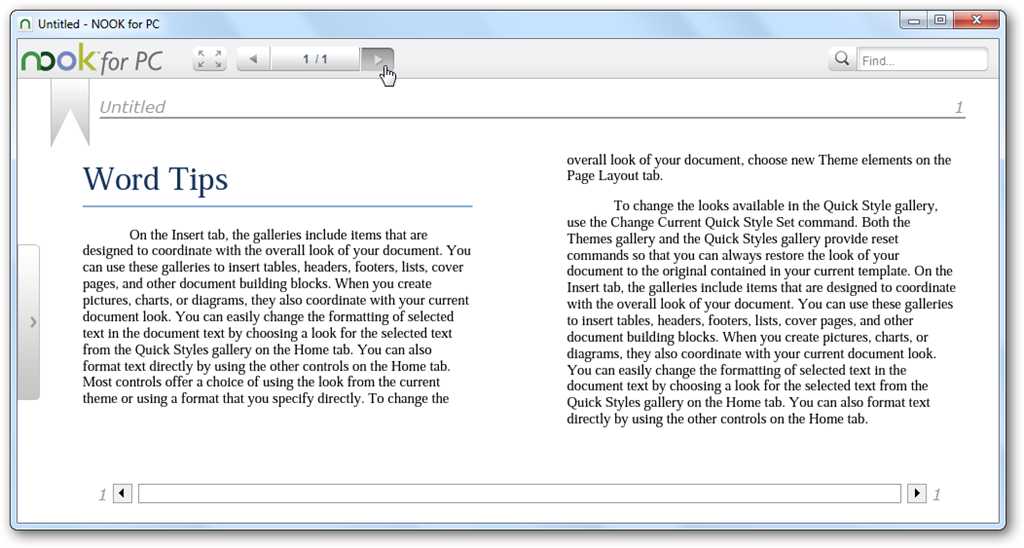
Now you can open your ePub file in any eReader program, such as Nook for PC. You can also transfer it to your eReader device, including a Sony reader or iPad, to read on the go. If you use a Kindle, you can also convert the ePub file to MOBI format with Calibre and transfer it to your device.
Word is one of the most versatile word processors, and it’s great to be able to save files in one of the newest popular eBook formats directly from it. Whether you’re wanting to sell eBooks, distribute them to your coworkers and friends, or just read your longer Word documents on your eReader, this is a great way to do it!
Download Aspose.Words for Microsoft Word 2007 (registration required)
![sshot-2010-09-06-[09-43-34]](http://www.howtogeek.com/wp-content/uploads/2010/09/sshot20100906094334.png)
![sshot-2010-09-06-[09-38-31]](http://www.howtogeek.com/wp-content/uploads/2010/09/sshot20100906093831.png)
![sshot-2010-09-06-[09-47-42]](http://www.howtogeek.com/wp-content/uploads/2010/09/sshot20100906094742.png)
![sshot-2010-09-06-[19-00-49]](http://www.howtogeek.com/wp-content/uploads/2010/09/sshot20100906190049.png)
![sshot-2010-09-06-[19-03-19]](http://www.howtogeek.com/wp-content/uploads/2010/09/sshot20100906190319.png)
Monday, August 16, 2010
Convert ext2/3 to ext4
Let’s say you’re a little bit behind the times. You’ve wanted to do some upgrading of your Linuxmachines but you’ve just not really had the time. Or let’s say you did do some upgrading of your Linux system but you didn’t make any changes to your file system and you’re still running a machine with either ext2 or ext3. Now that’s not necessarily a bad thing as both file systems work and work well. But let’s say you do want to take advantage of some of the features of ext4. In this article I am going to show you how to migrate your ext2 or ext3 partition to ext4. I will use a Ubuntu machine as an example. I want to warn you that you could lose data by doing this so, following good administrative practices, back up your data! Once you are certain you have that backup of your data, it’s time to begin. Kernel pre-requisite You must be certain you have a kernel that is at least 2.6.28-11-generic or higher. If not, do NOT continue on with this. To find out what kernel you are running issue the command Step 1 The first step is to boot from a Ubuntu Live CD. You do this because you can’t convert a file system that has been mounted. If you are converting a second drive on your machine (one that doesn’t contain your OS or your ~/ (home) directory, you can always just unmount that drive and do this without booting the Live CD. Step 2: Now it’s time to convert. We’re going to use /dev/sda1 as an example for converting. You will want to know the exact name of the drive and/or partition you are wanting to covert. If you are converting from ext2 to ext4 issue the following commands: If you are wanting to convert ext3 to ext4 issue the following commands: NOTE: After you enter either of the sudo bash commands you will have to enter your sudo password. Step 3: Regardless of which conversion you are doing you will want to check the drive (or partition) after the conversion and repair any issues. Do this with the command: Step 4: Now you need to make sure the partition will mount. Do this with the command: Hopefully you won’t see any errors. You should now see the contents of that drive listed in the /mntdirectory. Step 5: It’s time to edit your /etc/fstab file to reflect the change. Open this file up with your favorite text editor and look for the line that corresponds to the drive/partition you just changed. In that line you will reference to either ext2 or ext3. Change that reference to ext4. Save and close that file. Step 6: Now you need to refresh grub. Depending upon how your boot partition is will determine how you do this. If your boot partition is SEPARATE, do the following: If your boot partition is NOT separate, do the following: Step 7: Reboot. Once up and running you will now be using the ext4 file system! Final thoughts If you are leery of any of the above, don’t worry…you don’t HAVE to do this. Your system will run fine with ext2 or ex3. But if you love to get your hands dirty with your machines…then you will enjoy converting a working file system from one type to another. Just remember BACK UP YOUR DATA!uname -r. If your kernel is lower thatn 2.6.28-11 stop where you are and close your browser.sudo bash
tune2fs -O extents,uninit_bg,dir_index,has_journal /dev/sda1sudo bash
tune2fs -O extents,uninit_bg,dir_index /dev/sda1e2fsck -pf /dev/sda1sudo mount -t ext4 /dev/sda1 /mntsudo bash
mkdir /mnt/boot
mount /dev/sda1 /mnt/boot
grub-install /dev/sda --root-directory=/mnt --rechecksudo bash
mount /dev/sda1 /mnt
grub-install /dev/sda --root-directory=/mnt --recheck
Monday, May 31, 2010
How to Convert Videos to 3GP for Mobile Phones
Would you like to play videos on your phone, but the device only supports 3GP files? We’ll show you how to convert popular video files into 3GP mobile phone video format with Pazera Free Video to 3GP Converter.
Download the Pazera Free Video to 3GP Converter (Download link below). It will allow you to convert popular video files (AVI, MPEG, MP4, FLV, MKV, and MOV) to work on your mobile phone. There is no installation to run. You’ll just need to unzip the download folder and double-click the videoto3gp.exe file to run the application.

To add video files to the queue, click on the Add files button.

Browse for your file, and click Open.

Your video will be added to the Queue. You can add multiple files to the queue and convert them all at one time.

The converter comes with several pre-configured profiles for conversion settings. To load a profile, select one from the Profile drop down list and then click the Load button. The settings in the panels at the bottom of the application will be automatically updated.

If you are a more advanced user, the options on the lower panels allow for adjusting settings to your liking. You can choose between 3GP and 3G2 (for some older phones), H.263, MPEG-4, and XviD video codecs, AAC or AMR-NB audio codecs, as well as a variety of bitrates, resolutions, etc.

By default, the converted file will be output to the same location as the input directory. You can change it by clicking the text box input radio button and browsing for a different folder.

Click Convert to start the conversion process.

A conversion output box will open and display the progress. When finished, click Close.

Now you’re ready to load the video onto your phone and enjoy.

Conclusion
Pazera Free Video to 3GP Converter is not exactly the ultimate video conversion tool, but it is quick and simple enough for the average user to convert most video formats to 3GP. Plus, it’s portable. You can copy the folder to a USB drive and take it with you.
Do you have some 3GP video files you’d like to convert to more common formats? Check out our earlier article on how to convert 3GP to AVI and MPEG for free.
Link
Download Pazera Free Video to 3GP Converter

| Similar Articles | Productive Geek Tips |
| Latest Software Reviews | Tinyhacker Random Tips |


 "
"


 Posts
Posts

