Thursday, June 27, 2013


Tuesday, November 22, 2011
How To Block Web Sites at the Router Level for Network Wide Filtering - How-To Geek
A comprehensive network filtering system is overkill if all you want to do is block a handful of web sites. Read on as we show you how—with nothing more than your router—you can selectively block and temporarily restrict individual websites.
For many people a massive commercial internet filter is overkill. What if you just want to block Facebook when your kids are supposed to be doing their homework or Reddit when you’re supposed to be getting work done? You don’t need a huge system for that, all you need is the access restrictions module in your router. Today we’re looking at how you can quickly and easily block traffic on your network using router-based access restrictions.
What You’ll Need
<p><img alt='' src='http://www.howtogeek.com/wp-content/uploads/2011/11/whatyouneedtomato.jpg'/></p>
For this tutorial you’ll won’t need much and you won’t have to spend a dime. Before proceed make sure you have the following things:
- A Tomato compatible router
- A copy of Tomato on the router
- Administrative access to the router
We’re going to go through the tutorial as using a Linksys router running Tomato custom firmware. The steps we’re taking are largely equivalent to the DD-WRT system (you can read about selective domain blocking for DD-WRT here). If you don’t have Tomato installed on your router check out our guide to installing Tomato here. If you have it installed and you have administrative access (you know the login password for the control panel) then you’re ready to proceed.
Setting Up URL Filters in Tomato
<p><img alt='' src='http://www.howtogeek.com/wp-content/uploads/2011/11/2011-11-22_131534.jpg'/></p>
For our example we’re going to setup both a total ban and a time-based ban on the social news site Reddit. Reddit fans among us will attest to the fact that the site, as fun as it can be, is an enormous time sink and a great productivity killer. First let’s take a look at the Access Restriction module in Tomato. Navigate to your router control panel, typically an address like http://192.168.1.1 and plug in your credentials. Once you’re in the main panel navigate to Access Restriction in the left hand menu—seen above. Click on it to enter the sub-menu. If you’ve never used the feature before all you’ll see in the Access Restriction Overview section is a disabled example entry like so:
<p><img alt='' src='http://www.howtogeek.com/wp-content/uploads/2011/11/2011-11-22_132959.jpg'/></p>
Just beneath the example entry, to the right, is the Add button. Click that now to create your first entry.
For our first entry we’re going to make a filter, called Reddit Killer, which blocks Reddit all day, every day. Change the description name from New Rule to Reddit Killer, check All Day and Everyday, leave Applies to as All Computers/Devices, and then uncheck Block All Internet Access—if you don’t check this part, you won’t be able to specify what exactly you want to block. It should look like this:
<p><img alt='' src='http://www.howtogeek.com/wp-content/uploads/2011/11/2011-11-22_133429.jpg'/></p>
When you unchecked Block All Internet Access, an entire new portion of the menu unfolded beneath the initial entry. Within this portion of the menu is where we’re going to specify the sites we want to block.
Leave the Port/Applications section alone (these settings allow you to get more granular control over your filters such as filtering only BitTorrent or a specific port). In the HTTP Request section enter reddit.com and then, at the bottom right corner, click Save.
<p><img alt='' src='http://www.howtogeek.com/wp-content/uploads/2011/11/2011-11-22_140651.jpg'/></p>
Back at the main screen you should see the new filter, Reddit Killer, with it’s rather encompassing “Everyday” schedule. Let’s take a look at Reddit and see if our filter is active:
<p><img alt='' src='http://www.howtogeek.com/wp-content/uploads/2011/11/2011-11-22_144143.jpg'/></p>
Reddit is down? Well then. We’d better get back to work. Our filter is great success.
If you’re not quite ready for a full Reddit fast but you’d like to at least keep it shut off while you’re trying to focus on work, you can easily modify the scheduling component to, say, restrict access between 8AM and 5PM on the weekdays. Let’s click on Reddit Killer now so we can edit it.
<p><img alt='' src='http://www.howtogeek.com/wp-content/uploads/2011/11/2011-11-22_142424.jpg'/></p>
Uncheck All Day and Everyday, then in the new options which have appeared, select 08:00-17:00 and Monday through Friday. While we’re at it, let’s update the Description to better reflect the purpose of the filter. Since we’re restricting access to the evenings, we’ll call our new filter Reddit Tonight.
To register the changes, click save down in the lower right corner. If you wish to further massage the settings (such as applying the restrictions to only certain computers) you can pull down the Applies To menu and create white/black lists of computers that are restricted or unrestricted. You can also easily expand your filter by adding new lines into the HTTP request box. Instead of just a Reddit Killer it could be expanded to include all the web sites you routine kill time on (Reddit, Facebook, Fark, and so on). In addition to filtering web sites you can also set up keyword filters. In short, if it’s travelling through your network you can find a way to filter it in the Access Restrictions menu.
Have a clever technique for getting more out of Tomato and/or filtering time wasting web sites and other undesirable content? Let’s hear about it in the comments.

Thursday, November 10, 2011
Firesheep Sniffs Out Facebook and Other User Credentials on Wi-Fi Hotspots via lifehacker.com
Firefox: Firesheep sniffs out and steals cookies—and the account and identity of the owner in the process—of popular web sites (like Facebook and Twitter) from the browsing sessions of other users on the Wi-Fi hotspot you're attached to.
Firesheep is a proof-of-concept Firefox extension created by Eric Butler to show how leaky the security many popular web sites (like Facebook, Flickr, Amazon.com, Dropbox, Evernote, and more) employ is. The problem, as Firesheep shockingly demonstrates, is that many web sites only encrypt your login. Once you are logged in they use an unsecured connection with a simple cookie check. Anyone from your IP address (that of the Wi-Fi hotspot) with that cookie can be you. When using Firesheep on a public hot spot any session it can intercept is displayed in the Firesheep pane with the user's name and photograph (when available). Simply click on their name to intercept the session and start browsing the website as though you are them.
What can you do to protect yourself against such a painfully easy attack against your privacy and security? You can set up an SSH SOCKS proxy to encrypt your traffic, effectively sending your site sessions and accompanying cookies through a sniff-proof tunnel. For a less involved alternative, however, you could use something like the previously mentioned HTTPS Everywhere Firefox extension or Force-TLS (highlighted by TechCrunch). Essentially, these extensions will force popular sites to send data via the more secure HTTPS protocol, which encrypts data as it's sent, and while it's slightly slower, it's definitely worth using HTTPS when available.
Firesheep is free, works wherever Firefox does, and requires a wireless card capable of operating in promiscuous mode.
Firesheep [Code Butler via TechCrunch]

Monday, August 22, 2011
How To Access Your Machines Using DNS Names with DD-WRT - How-To Geek
We’ve shown you how to statically set the IPs on your network, now lets flip that DNS switch for added elegance and ease of use. Today’s guide will show you how to access your machines using DNS names on your DD-WRT enabled router.
Image by Henk L
Preface
On our How To Set Up Static DHCP on Your DD-WRT Router guide, we’ve talked about making sure that your clients will always get the same IP address from the router. So now if you want to access one of the machines on your network, as you know it’s IP, you can use that… but using IPs just doesn’t have the same elegance as using names. Also, with the usefulness of “static IP”s dwindling due to the rise of UPnP, and the inconvenience of setting up “static reservations“ (having to find the MACs and alike)… What if you don’t want to remember IPs at all?
That is where DNS comes in.The Problem
Your trying to reach from one machine/device on your network to the other using its IP address (using ping for example) and it works. However, when trying to do the same using it’s hostname like “mydesktop” or “mylaptop”? it is a hit and miss… sometimes it works…. usually it doesn’t… :\
What is going on?
Your devices don’t know who and how they should ask for the “name” to “IP” translation, because they are missing a key configuration, the “DNS suffix”.
When a computer needs to translate a name to an IP address (called “resolve”) it has a couple of ways to do it, one of the ways is to ask a Domain Naming System (DNS) server. However, to be able to do so, the client must ask the question in the form of a “Fully Qualified Domain Name” (FQDN).
An FQDN consists of the hostname like “mydesktop” and the DNS zone it belongs to like “geek.lan”. So in our example, the FQDNs for the hosts would be “mydesktop.geek.lan” and ”mylaptop.geek.lan” respectively. When a client doesn’t have the “DNS zone” at hand, it is unable to ask the DNS about a “flat” name (a name that doesn’t specify the “DNS zone”). That is, to actually reach your host by name, you would need to ping “mydesktop.geek.lan”.
However, if the DNS suffix was defined in some way (either manually or automatically), the client will automatically try to append it to the requested hostname and ask a DNS server if it can help with the resolve.
With that said, if the DNS suffix is not defined, the client does try to find out the name on its own, using a “DNS broadcast”. The problem with that is that not all clients are configured to answer, or are actually configured to deliberately not answer such a request. In contrast, it would simply be annoying to specify the FQDN every single time.The solution
In order to have the full infrastructure that will fix this problem, one only needs to set the “DNS suffix” on the “DHCP scope” of the *router. Doing so will both make it so the router will now have a “dynamic DNS” server service that clients can register themselves to, make it so the DHCP service it self will do the same for none-self-registering hosts and deliver the “DNS suffix” as part of the “DHCP lease” given to the clients. Therefore making the entire solution a self sustaining, default behaving solution that solves all the problems in one fail swoop…. neat, A?
*When using DD-WRT… with other routers, your mileage may vary.
To do this, go into your router’s Administration page:
- Go into –> Services
- Change, “Used Domain” to be “LAN & WLAN”
- Choose a Domain name, we’ve used “geek.lan” for this example, but you can use *whatever you want.
- While using Static DHCP reservations is optional for this procedure, if you chose to implement it, it is recommended that you set the hostname, to match the one that is set on the machine/device’s OS. Now if it just so happens that the devices OS, doesn’t register a name in DNS (like phones) this is a good way to force one on it.
- Click “Save” –> “Apply Settings”.
*The one exception to that rule, is that if you use “.local”, while your windows machines will probably do just fine, your Linux machines will adhere to the mDNS (Multicast DNS) standard and will again ignore the DNS server. There is a workaround, but it’s beyond the scope of this guide.
Now to check that the settings have taken affect, go to the command line and issue an “ipconfig”.
You should see that your DNS suffix is currently none-existing as below:
Issue an “ipconfig /release” followed by an “ipconfig /renew”, and you should see something like:
Repeat the procedure on at least one more machine and try pinging, using only the hostname name.
You should see that the client has “auto-magically” understood that the full name of the device you’re pinging is “hostname.dns.zone”, and was able to translate (resolve) the FQDN to a ping-able IP:
Troubleshooting
As this guide is about using DNS like the How to Remove Advertisements with Pixelserv on DD-WRT guide was, If you run into problems there are a couple of things to do:
- Clear your personal machines DNS cache.
This is because of a DNS cache, that may fool your computer into thinking it already knows the hostname, without consulting the DNS for it. On windows this would be “ipconfig /flushdns”.- Make sure your client is using the router as the DNS and that it resolves the FQDN.
Especially when using a VPN or a network that is more complex then the normal router to computer setup, it is possible that your client computer is simply not using the router as its DNS. It is very easy to see using the command “nslookup” below what is the DNS server the client is using. If the IP is not the same as the router, you have found the problem.
That’s it… you should be all set
Hurry, all I see is darkness.


Friday, August 19, 2011
Know Your Network, Lesson 4: Access Your Home Computers from Anywhere via lifehacker.com

You've picked out your hardware and set up the basics, and configured your network to perform at its best and fastest. Now it's time to open the gates to the outside world. In this lesson, we're going to walk you through how to set up your router so you access your home computers from anywhere—and with your own friendly, easy-to-remember URL.
Setting up remote access to your local network is one of the coolest things you can do with your router, as it allows you to remotely view your screen, access files, control services like BitTorrent remotely, and so on. Basically, anything you can do at home can be made possible by just opening a few ports on your router. It can seem a little daunting if you've never done it before, but once you understand what everything means and where to find the information you need, you should have no trouble getting things to work. We're going to go over basic setup and then talk briefly about a few bonus options as well.
Port Forwarding and More
By default, your local network is local and cut off from the rest of the internet. In most cases you have just one IP address that's shown to the world, despite the many that your router distributes to your individual computers and devices locally. What port forwarding does is take a port on that shared IP address that's available to the rest of the web and forwards it to one of your local machines. This lets people from outside access services on your local network.
Setting up port forwarding is pretty straightforward, but before you get started, you need to know what ports you want to open up. Most of the time, you'll set up port forwarding on an as-needed basis—say after you've set up a new service on your computer For example, if you're trying to run a web server off your machine you'll need to open up port 80. If you want to open up SSH access, you'll need to open up port 22. Those are just two of many possibilities, and you probably don't have every port for every service memorized.
This is where a site like PortForward.com can help, as it provides a handy list of common ports for specific services. You can use this list to check which ports you need to open for whatever services you want to make available from outside your home network.
Once you've figured out all the ports you want to open, just head on over to the port forwarding section of your router (if you don't know where it is, just click around a little). In DD-WRT, it's in the NAT & QoS section. Other routers may list it simply as Port Forwarding (all on its own) or Virtual Servers. Let's take a look at what a filled-out port forwarding table looks like:
While things may differ slightly depending on your router's firmware, this table is pretty standard. Here's what all of those fields mean:
- Application - The name of the application you're forwarding this port for. You can use any descriptive text you want—this field is here to help you remember why you set this up; like the name suggests, you normally want to use the name of the application you're setting up port forwarding for. I also include my computer's name along with the service, since I forward ports for the same applications on different computers. For example, you'll see VNC service set up for both Grey and Hunter. I include their names in the Application section so I know which port forwarding rule is for which computer.
- Port to - "Port to" is the port on your local IP address. If you were setting up VNC for a local computer, you'd fill this in with 5900 as that's the port number VNC uses.
- Port from - "Port from" is the port on your external IP address. Generally you'll also enter the same port as you would in the "Port to" field. This works just fine when you're configuring only one machine for one type of service. But say you wanted to be able to remotely access two or more computers using VNC. If you used 5900 on a single, external IP address they would be in conflict. The router would see a request for port 5900 and not know which local IP address should handle that request since the port forwarding table has two. To solve this problem, you can use the standard port for one and not for the other—kind of like an apartment building has a single address but multiple apartments. As you can see in the sample routing table above, Grey's "Port from" is set to 5900 while Hunter's "Port from" is set to 5901. If you try to use VNC normally on my external IP address, you'll be asked to log in to Grey because it uses the standard port. If you want to access Hunter, however, you can easily do so by just using port 5901 instead of the default. This way you can set up identical services with a single external IP address without conflicts.
- Protocol - This is where you specify whether or not your service uses the TCP protocol, UDP protocol, or both. When you look up your ports you'll also want to make note of the protocols used. In most cases it will just be TCP.
- IP Address - This is where you specify the LAN (local area network) IP address of the computer you want to use for this port forwarding rule. You can easily find this information in your computer's network settings. The IP address will generally be in the 192.168.x.x or 10.0.x.x format. Because these IP address are generally dynamic (meaning they can change), you'll want to either set up static IP addresses or DHCP reservations. More information on that is available below.
- Enable - You need to check this box to enable the port forwarding rule. If you don't check it, you'll still be able to save the rule but it won't be active or function in any way.
Now that you understand what these fields mean, click the "Add" button at the bottom to add a new port forwarding rule. Fill everything out with the desired information (such as port 21 for FTP, 22 for SSH, 5900 for VNC, etc.) and don't forget to check the enable box to make sure everything works. When you're done entering all your rules, save it and you're all set.
Port Range Forwarding
Sometimes you want to open a range of ports on a particular machine and not just one at a time. Some routers offer the option of port range forwarding in addition to regular old port forwarding (like we just discussed). This works in the same way, except you specify a range (e.g. ports 21 - 80).
The DMZ
DMZ stands for De-Militarized Zone and is a simple way to open up every port on a single computer. If your router has this feature, just visit the DMZ page and enter that computer's IP address. While convenient if you only have one computer you want available for remote access, this isn't very secure. You're essentially allowing any kind of traffic to be forwarded to this machine. Even if you only have one computer, you're still better off manually entering each service you want to open. Only use this if you really have a good reason to do so.
DHCP Reservations
One of the annoying aspects of port forwarding is that your router dynamically assigns IP addresses to your computers. That means the local IP addresses of you computers may change, which can render that port forwarding you did incorrect or non-functional. While setting up static IP addresses on your local machine is one option, DHCP reservations are better if you've got the option in your router. This is common in Linksys and D-Link routers but generally not included in Belkin. It's also available in DD-WRT in the Services section, but it's easy to miss.
DHCP reservations let you specify static local IP addresses on the router's side so that when your computer connects to your network, your router will always assign it the same local IP address. To set it up, decide what local IP address you want for a given computer (or other device) and find it's MAC address. Your MAC address is a 12-digit alphanumeric string separated by two digits at a time. It generally looks like 1A-2B-3C-4D-5E-6F or 1A:2B:3C:4D:5E:6F. To locate it on Windows, click the Start menu and choose run. Then type ipconfig/all. The "Physical Address" is your MAC address. On Mac OS X, just open System Preferences, choose Network, click More Info, and then the Hardware tab. Your MAC address should be the first thing displayed. Once you've got that you can just enter it in the reservation list with the local IP address you want and you're also set. Just be sure to save and enable it. You may need to restart your router to see the changes take effect, but once you do the computers and devices in the reservations table will retain the same local IP addresses. This solves pretty much every kind of problem. For information on setting this up, check out our guide to DHCP reservations.
Assign a Friendly Domain Name to Your Router with Dynamic DNS
DNS is a service that lets you access your home computers using a nice doman name (e.g. myfancyrouter.net) instead of a numeric IP address (e.g. 72.54.34.90). Depending on your internet provider, however, your external IP address may periodically change. That's why you need Dynamic DNS. It points a friendlier domain name to your numeric IP address just like regular DNS, but compensates for that IP address' proclivity to change. So, rather than typing in 76.xxx.xx.xx every time you want to remotely access your home computer, you can type something friendly like
myawesomecomputer.dyndns.tv.You can accomplish this task in a couple of ways. First, you can download some software from your dynamic DNS provider that will automatically check and update your external IP address at a set interval. Second, your router may already support some dynamic DNS providers and can perform this update for you automatically (which is the easier method). Two of the most popular providers of dynamic DNS services are DynDNS and No IP, but there are others. These services are generally free but offer perks at a cost. Some routers only support one of these services, but custom firmware like DD-WRT support both and more.
To set up dynamic DNS, you just need to sign up for an account with one of these services and enter your account credentials into the dynamic DNS section on your router. If your router doesn't support your service of choice, you can just download software from your service provider like we mentioned earlier. You'll need to keep this software running pretty much 24/7, so it's definitely better if you can leave the task of dynamic DNS to your router.
If you want further setup instructions, here's how to set things up with DynDNS and No IP. Your router may support other services, but it's likely to support at least one of those.
That's all for today's lesson. In our final lesson, we'll be taking a look at some fun and useful bonus features you may have on your router plus resources for learning more. As always, if you're behind on our lessons, you can always find everything you've missed on the Lifehacker Night School tag page. You can follow Adam Dachis, the author of this post, on Twitter, Google+, and Facebook. Twitter's the best way to contact him, too.
 You've
 Thursday, August 18, 2011
Know Your Network, Lesson 3: Maximize Your Speed, Performance, and Wireless Signal via lifehacker.com

You've picked your router and set up all the basics, so now it's time to optimize your network. In this lesson, we're going to look at how to improve your network's speed and wireless signal so it's operating at full capacity.
In theory, your network should work just fine as-is, but we all know that reality can differ from what should ideally be the case. How well your router performs is going to depend on a lot of factors, so these tips and tricks might work better for some than others. For example, strategies for improving your wireless signal aren't going to do much unless your router is dealing with some interference. On the other hand, tweaks can only do so much if you're dealing with really bad interference. That said, whether the improvement is marginal or great, we're going to look at all sorts of ways to get your network running as fast and efficiently as possible.
Use Your Wires Whenever Possible
Wi-Fi is nice, but it's rife with signal issues and slower than a wired ethernet connection—even when Wi-Fi is performing its best. If you can wire up your devices, you should. When transferring files between devices you'll always get better performance over a wire, and internet connections over 25mpbs will also benefit from wires. That may seem strange when many routers advertise wireless speeds that are much higher, but real-world performance is generally far lower.
If you can't wire up your home, power line ethernet adapters (like Belkin's gigabit option) can be a good alternative. It's pretty rare that you'll have a power line capable of maintaining gigabit speeds, but you may still achieve better performance than you would over the air with 802.11n. If you want to give power line adapters a shot, just buy a set from a store with a good return policy and see how they work. If they don't, you can always take them back. If they do, you can buy as many as you need. Just be sure to test them on every outlet you're going to use, since some outlets work better than others with power line adapters.
Check out our guide on ditching wireless and going completely wired in your home for more tips.
Improve Your Wi-Fi Signal
There are plenty of tricks you can employ to improve your Wi-Fi signal. Your mileage may vary depending on your situation, but most methods are pretty easy and worth a look. In this section, we're going to take a look at our favorites. They're all things you can accomplish with very little effort.
Choose the Best Wireless Channel
While radio frequency interference is going to be an issue in your home, one of the biggest causes of interference that'll slow down your Wi-Fi speed is other Wi-Fi routers in your area. That's often because most Wi-Fi routers default to the same channels: 6 or 11. (You don't need to understand all of this to fix the problem, but we'll explain.) Additionally, the standard channel width is 20 MHz, which means that even though you're on channel 6, which has a frequency of 2.437 GHz, your channel width spans 20 MHz around that frequency. Since each channel is only 5 MHz apart from the next, your signal is bleeding into the others. While you can adjust the channel width, this may only help some of the time as your router's needs will change. Ideally channel width would be adaptive, but since that isn't a reality the best thing you can do is pick a channel as far from the others as possible.Previously mentioned wireless network locater WiFi Stumbler is a webapp that provides a simple way to check what channels are in use in your computer's range. Simply look for the channel with as much space around it as possible and use that channel instead of what you're currently using. Also note that while you may pick up competing signals on the same channel, if they're all very weak that can be a better choice than choosing a lesser-used channel with a strong, competing signal.
Basically, if your neighbor's on channel 1 and a few people down the block are using channel 4 (and you're somehow picking up their Wi-Fi), you're still probably better off using channel 4 for your Wi-Fi. That is, unless there's a huge amount of interference on channel 5. As you can see it can get a little tricky, but the goal is to pick a channel that keeps its distance from other signals with the same or overlapping frequencies.
We discussed where to change this settings in the previous lesson, but you'll generally find it in your basic wireless settings on your router. It tends to sit in the same section as your SSID.
Boost Your Signal's Transmit Power
Your Wi-Fi router transmits its signal with a set amount of power, but that's something you can adjust. In theory, if your signal sucks you'd want to just transmit it as powerfully as possible. In reality, boosting your router's transmit power too much can actually make things worse. But there's a magic number: 70 mW.In general, your router's transmitting at 28 mW, but most routers can handle 70 mW without issue. According to the DD-WRT documentation, setting this any higher could fry your router's radio chip because your router's not designed to handle the excess heat. You technically can turn it all the way up to 251 mW, but if you do you're just asking for trouble. If your router overheats, it's going to perform far worse—or die. Staying in a safe range may only show marginal improvements, but that's much better than a dead router.
Unfortunately most routers don't allow you to boost your transmit power, so if you're not using custom firmware like DD-WRT or Tomato, you're probably out of luck on this one. If that includes you, just read on as the next section can help solve signal issues with virtually any router.
Extend Your Signal with DIY Projects
Sometimes router settings just aren't going to cut it, so you need to put on your tinkering hat and make a DIY booster. In episode four of the Lifehacker Show, we built this simple Windsurfer booster out of card stock and tinfoil. On top of that, we have many more Wi-Fi boosting projects, such as this tin can extender or a repurposed satellite dish. There are also several range-boosting products on the web (like this one), but if you can avoid shelling out another $70, it's worth giving a DIY option a try.
Use QoS to Help Prevent Bandwidth Hogging and Network Overloads
In our previous lesson we talked a little bit about Quality of Service, which is essentially a set of rules that throttles bandwidth when a person (your roommate) or application (BitTorrent) is trying to hog it all. Say, for example, you want to video chat while your roommate is downloading a movie. QoS helps make sure both endeavors have enough bandwidth. We have a full guide on configuring QoS, but here's a quick overview of what you need to do.First things first, navigate to your router's QoS page (if it exists—not all router firmwares have this feature) and enable QoS. That's not going to do anything yet, because we have some settings to fill out first, but I always forget to enable features so I like to do that first. In your QoS settings you should have a few settings and toggles to deal with. Here's a quick look at your options in DD-WRT (note: this will vary from router to router, but obviously we can't go over every single brand's firmware):
- WAN, LAN, or Both - Generally QoS is used to handle traffic from outside your local network, so it defaults to WAN (Wide Area Network). Unless you have a reason to change it, just leave this setting as-is.
- Packet Scheduler - This can be set to HTB or HFSC. HTB is the default method that uses a "token" system to manage bandwidth. Don't change this to HFSC unless you know what you're doing.
- Uplink and Downlink - Here you can set a limit for the total network bandwidth can be used on your network. If you don't want to max out your connection, you can set these speeds to less than their theoretical maximums. DD-WRT recommends 80-95% for uplink and 80-100% for downlink.
Once you've got those global settings taken care of, you can start specifying rules. DD-WRT splits these rules up into three categories: Services, Netmask, and MAC priorities.
Services Priority will let you set bandwidth priorities for different applications. These applications are pre-set and include everything from SMTP to BitTorrent to Xbox Live. If a particular service isn't listed, you can add it yourself.
Netmask Priority can give bandwidth priority to a range of IP addresses. For example, if you have three computers that use the IP addresses 192.168.1.10, 192.168.1.11, 192.168.1.12, you can specify that range to receive priority. This can be useful if you want to ensure that your machines will always take priority over any guest computers that show up on your network.
MAC Priority is a way to set which specific devices receive priority over others. Here you enter your device's MAC address (a MAC address is a unique identifying address for your computer's network adapter) and set a relevant priority.
Once you've chosen a service, IP range, or MAC address, and added it to your priorities list, you have to actually define the priority. By default the priority will be set to Standard, but you can promote it to Express or Premium to give it a higher bandwidth priority over other items on the list. These categories are good for applications that will sometimes require additional bandwidth, such as video chat and VOIP. You can also set any item to Exempt to let the app or computer use as much bandwidth as it wants and Bulk if you want it to only use bandwidth that is left over from other applications.
After you've finished adding all your devices and setting their priorities, you can save your settings and let your router reboot (if necessary). That's really all you have to do to get QoS working.
That's all we've got for today's lesson. Join us again tomorrow when we'll be going over how to set up your computers for remote access. If you've missed any previous lessons, you can always find them on the Lifehacker Night School tag page. You can follow Adam Dachis, the author of this post, on Twitter, Google+, and Facebook. Twitter's the best way to contact him, too.
 You've


Monday, August 15, 2011
Know Your Network, Lesson 1: Router Hardware 101

Home networking is something we all have to deal with, but it can be confusing as heck. This week, we're going to turn you into a networking wizard, starting with getting to know the most important device on your network: the router.
Router Basics
Your router is the glue that holds your home network together. It connects all your computers to one another, either through Ethernet cables or a wireless connection. A router is different than a modem: your modem connects you to the internet, while your router connects your computers to one another. When you hook up your router to the modem, however, you're then able to share that internet connection with all of the computers on your network. Sometimes modems will come with routers built-in, but this isn't always the case.
Devices that connect to your router—that is, the computers, tablets, smartphones, DVRs, game systems, and so on—are called clients. Each client on the network is given an IP address, which helps your router direct traffic. Clients within the network get a local IP address, while your modem gets a global IP address. Global IP addresses are like street addresses, while local IP addresses are like apartment numbers: one lets you find the building in relation to the rest of the world, while the other lets you find the specific location within the complex. These addresses make sure the right information from the outside world gets to the right computer on your network.
Routers have a number of different features, so we'll go through some of the most common router specs and how they affect your home network.
Wired vs Wireless
You'll want to hardwire any computer that doesn't need to move around, like a desktop, since wired connections are fast, reliable, and cheap. They're far from ideal for devices you pick up and move around, though, like laptops, so for those we use a wireless connection (commonly known as Wi-Fi). Wi-Fi is more than adequate for simple web browsing, though wired connections are ideal if you're transferring big files, gaming, video chatting, or streaming video.Most people have a mix of wired and wireless devices on their network, so most of our discussion today will be focused on wireless routers. Since wireless routers allow for both wired and wireless connections, you can wire up when necessary, and connect over Wi-Fi everywhere else.
Wireless Throughput
Throughput is the speed at which a router can transfer data. The transfer speed of your wireless connection is dependent on the wireless standard it uses. The most common standards today are 802.11g and 802.11n (also known as "wireless G" and "wireless N", respectively). Wireless N is faster than wireless G, though routers that support wireless N are also more expensive. Most new devices—like smartphones and laptops—support the faster wireless N.
Your router isn't the only thing that determines wireless speed: you also need the correct kind of wireless card in your computer. If you have an older laptop, it might have an older wireless G card inside, meaning it can't take advantage of wireless N speeds. If you have a mix of N- and G-capable computers, you can turn on a wireless N feature called "mixed mode", which will let you use both on the same network. You'll get faster speeds on the wireless N clients and slower speeds on the wireless G clients. Some claim, however, that running both N and G devices on the same network can lower speeds across the network, even between a wireless N router and wireless N computer. So if you want the fastest possible speeds, you'll probably want all wireless N devices on that network.
Wired Throughput
The wired half of your router will come in one of two speeds: 10/100 Mbps and 10/100/1000 Mbps (also known as "gigabit"). 10/100 routers are cheaper, but won't transfer data between computers as quickly as gigabit routers will. If you're only using your router to connect to the internet, 10/100 is fine, since your internet connection is probably slower than 100Mbps, meaning you wouldn't be able to actually take advantage of the router's full speed. If you're transferring data between computers, however, you'll want to go with a gigabit router, since it'll transfer that data much faster than a 10/100 model.
Range
Wireless routers can only reach so far. If you have a big house and have the router on one side, you might not be able to access the network from the other side of the house. Your range, like your speed, is determined by the wireless standard you use. Wireless N has a longer range than wireless G, so if range is important you'll want to use wireless N.
That said, there are many other ways to connect to your network from afar. Wireless extenders (also called wireless repeaters) are products you can buy that do exactly what they say—extend your network further. Alternatively, you can buy a powerline adapter, which lets you use your home's electrical wiring to hook a faraway device up to your router with an Ethernet cable (and thus get a faster connection than wireless would allow for).
Number of Ports
Routers have two types of ports in the back: LAN ports and WAN ports. Your WAN port hooks up to your modem (which, again, is what connects to the internet), while the LAN ports hook up to your computers and other clients. Most routers have one WAN port, but you'll need as many LAN ports as you have wired devices. If you have more wired devices than can fit on a router, you can plug them all in using a wired switch. A switch is like a power strip for your router: it lets you plug in more devices than the router originally allowed. Photo by Ari Zoldan.Number of Bands
Wireless routers broadcast on a radio band, and many new wireless N routers can broadcast on two bands. These are called, appropriately, dual band routers. Older routers and computers operate on a 2.4Ghz band only, while dual-band routers allow for both the 2.4Ghz band and a 5Ghz band. The 5Ghz band is great because it has less interference, since tons of other devices—from other networks to Bluetooth to cordless phones to microwaves—operate on the 2.4Ghz band.
The main downside of the 5Ghz band is that, since it uses a higher frequency, it isn't as good at penetrating walls. As such, if you run your router in 5Ghz mode, you might have a shorter range than if you ran it in 2.4Ghz mode. In addition, some older devices don't support 5Ghz. The solution to this problem is to use a simultaneous dual-band router, which can broadcast on both bands at once.
Wireless Security
Unless you don't mind strangers eating your bandwidth and potentially accessing your networked files, you should always protect your wireless network with a password. WPA2 is currently the most secure type of wireless encryption, so make sure you use WPA2 if you can. Some old wireless devices won't support WPA, in which case you'll have use the less secure WEP instead. Basically every device made in the last four years support WPA2 encryption.If you're planning to use your router for a small business, you might want to look for a router with the "guest network" feature, which allows other people to access the internet without giving them full access to your computers and sensitive data.
Hackability
Hardware specs like these are important, but routers also come with a lot of software and firmware features, like DHCP reservations, Quality of Service, or firewalls that can make managing your network easier. However, the more of these features a router has, the more expensive it's likely to be.
If you're comfortable with flashing a new firmware on your router, you're better off getting one that's compatible with a third-party firmware like DD-WRT or Tomato. Make sure your router is on DD-WRT's list of supported devices or Tomato's list of supported devices if you want to go this route.
When It Comes Time to Buy a New Router
If you have a particularly old router, you may read a lot of the above information and decide it's time to upgrade. Be sure to check out our guide to buying a Wi-Fi router, and take all the above information into account as you shop: for example, if you need your network to reach long distances, make sure you get a simultaneous dual-band router for maximum range.
A note on user reviews: unlike most technology, reviews for wireless routers are not to be trusted. Most routers have a mix of 5-star "works perfectly" reviews and one star "totally sucks" reviews, and it's because everyone's home is different. There are so many other factors that go into network quality, like the walls, interference from other devices, and so on that you can't really extrapolate much from a given person's experience. The best thing to do is evaluate your needs, buy a router from a trusted brand that fits those needs, and return it if it doesn't work for you.
Understanding your router is merely the first step in the process, but it's an important one. In the next few lessons, we'll be talking about some of the software and firmware features of your router (like the aforementioned DHCP reservations and Quality of Service) and how they can make your network as fast and reliable as possible.
You can contact Whitson Gordon, the author of this post, at whitson@lifehacker.com. You can also find him on Twitter, Facebook, and lurking around our #tips page.
 Home networking is something we all have to deal with, but it can be confusing as heck. This week, we're going to turn you into a networking wizard, starting with getting to know the most important device on your network: the router.


Tuesday, June 28, 2011
How To Plan, Organize, and Map Out Your Home Network - How-To Geek
Whether you’re setting up a new home network or overhauling the one you’ve got, planning and mapping out your devices and intended uses can save you a lot of headaches.
(Banner image credit: karindalziel)
Count Your Devices and Plan
(Image credit: Docklandsboy)
When setting up your home network, take a tally of what kinds of devices will be on your network. I’ve got two desktops, three laptops, five phones/PMPs, a printer, an XBOX 360, and a Wii to keep track of. Of course, when we have guests over, I want to make their setup as painless as possible. I also use a repeater to expand my wireless range. Things can get pretty complicated, but knowing what you have and anticipating special cases makes it significantly easier to map out your network. It also helps you decide what kind of networking equipment you need.
Consider Your Router
Let’s start at the top, and work our way down. Your router is arguably the most important device in your home network. Your router’s job is three-fold:
- Joining your network to the internet.
- Managing your network’s traffic.
- Providing basic security.
(Image credit: Horrortaxi)
Whether you’ve got DSL, cable, or satellite, your broadband really only hooks up to one device. If you make that device a router, then any number of other devices can connect and disconnect as they come and go. This allows you to share you internet connection over a wide area.
Now, since you’ve got a bunch of devices that are thirsty for the internet-juice, they need a way to connect. Not only that, but they need their traffic properly directed. Streaming a movie to your gigantic TV only to have it show up on your phone doesn’t work. Your router handles everything appropriately by assigning devices an IP address and forwarding ports and so on.
Lastly, if you’re worried about people stealing your personal information – and you SHOULD be – then you’ll have some sort of security in place. If you’re wireless, then this means requiring a password to connect. In addition, you can enable blocking of ActiveX scripts and other things in your router’s settings. This acts as a basic firewall.
You can see why your routers are an integral component of any home network. Consider turning yours into a Super-Powered Router with DD-WRT.
Wired Devices
(Image credit: orcmid)
How many wired devices do you have? If you have more than four, then you’ll exceed what most routers are equipped with. That means you’ll need to buy a switch so you can plug in more ethernet cables.
Where are your devices and where is your router? Will you need to run ethernet wires across your house to make sure everything gets online? Could you move the router so it’s closer to your devices?
Wireless Devices
Where will your wireless devices see the most activity? If your router is on one side of the house but your bedroom is on the other, then you’ll likely have trouble getting decent speeds when browsing in bed. Can you move your router to a more central location? If you really need a range boost, consider buying a wireless access point. This can be set up to repeat your main router’s signal, and as a bonus you can tether other devices via ethernet, too. If you have an old router lying around, you can put DD-WRT on it and turn it into a repeater for free.
Map It Out
(Image credit: willspot)
Draw a map of your home and try to fit everything. Consider where things should be placed for best range, fastest speeds, and so on. Physically doing a tour and drawing as you go can really make the difference up-front. Believe me, there’s little worse than having everything configured and wired only to find that you forgot your HTPC in the living room. Wireless streaming 1080P from across the house didn’t cut it for me, and I had to redo a good portion of my network.
Connecting Devices
Plugging in wired devices is easy enough, but what about wireless devices? Before we can connect, we need to consider how IP addresses will be assigned to your devices.
Dynamic and Static IPs
DHCP – Dynamic Host Configuration Protocol – is easy. You set up parameters on your router – how many IPs can be given out, what range these addresses should be in, etc. – and your devices will automagically connect and work. The downside? Your computer can have one IP address, but after a restart (or after power-cycling the router), it can be totally different. This makes it difficult to route traffic from outside of the web. If you use Subsonic or Plex while out and about to stream your home music and video, you’ll have to reconfigure your port forwarding settings.
Static IP routing is really tedious on your devices. You basically tell every device which IP it should use, what gateway to go through (HINT: it’s your router’s IP), and what subnet mask to use (again, look at your router’s configuration). This is a time-consuming hassle, but you won’t have worry about shifting IPs.
So which is better? Well, in my experience, it’s both. Yes, that’s right, you can use both simultaneously. What I do is set up DHCP for everything, but manually configure the IP of the two computers that stream or need to be accessed from outside of the network. Odds are, these are going to be devices that are connected to your router via ethernet – the speed of wireless for stuff like this can be ridiculously slow. I also use static IPs with printers, just in case using the printer-name or searching for it over the network takes too long or gets wonky. These manually assigned IPs can be outside of the DHCP’s range of IPs. Devices in my “server” list usually start at 192.168.1.200.
Your laptops and phones will connect as they need and work without hassle. My DHCP range of IPs is between 192.168.1.100-150. The router, itself, is 192.168.1.1, and my repeaters are 192.168.1.10 and 20. My printer is manually assigned 192.168.1.255 – the last available IP because printing is the last thing I want to do, and it’s easy to remember.
DD-WRT, as well as newer router firmwares, can actually do “Static DHCP” or “DHCP reserving,” negating the need to go through this tedious process. What this means is that you can assign devices (based on their MAC addresses) to certain IPs in your router, without worry of changes. All of your devices can connect via DHCP, but their IPs won’t change because the router knows which devices are connecting. Definitely look into this and take the time to set it up.
An Address Book
Draw a table of all of your devices, splitting them up into one of two categories: clients and servers.
If something is going to be sending information – like your desktop packed with 2 TB hard drives full of movie and music – then stick it in the “server” column. Everything else goes in the “client” column. The one exception to this is wireless printers. They can finicky, so it’s best to treat them as a server, at least when assigning IPs.
Now consider which of you computers you may want to access from outside of the house. If you’ve got a web server or a Linux computer that you remotely control, then make note of it. In the end, write up an address book of all of your devices and which IPs they’ll use (or if they’ll use DHCP) and what ports you need to forward. It’s also a good idea to list each device’s MAC address, in case you need it during configuration or when checking your router’s logs.
(Above image credit: k0a1a.net)
Wireless Security
What kind of security should you use for your home network? I get asked this question a lot, and I almost always say WPA2.
(Image credit: k0a1a.net)
It only takes a matter of minutes to crack a WEP-secured wireless network. Now, while the odds of someone doing this to get access to your network are low – especially if your neighbor’s is wide open – WEP is also more restrictive to what passcodes you can use. Most people I know use their home telephone number – it’s 10 digits, which fits the length and hexadecimal requirement, and is easy to remember. If you don’t know the person’s phone number, odds are you shouldn’t be on their network anyway.
WPA is also fairly easy to crack, but as not all devices are compatible yet with WPA2 (I’m looking at you, old gaming consoles!), WPA can work. You can create long alpha-numeric passwords to make it difficult for others to guess and get in, though it doesn’t help against those who may crack your network.
One of my favorite things to do is name my wireless network something specific, so it’s a clue to my password. Inside jokes work the best, but you may decide to use a geeky reference instead. For example, my wireless SSID could be “AnswerToLifeUniverseAndEverything” and the password would be “fortytwo.” If someone gets the reference, then they get to be on my network, but that’s just out of my benevolence. Just remember, security risks, no matter how minor, are still risks.
For more information, check out Debunking Myths: Is Hiding Your Wireless SSID Really More Secure?
Naming Schemes and File Sharing
(Image credit: tlgjaymz)
Speaking of naming things, a lot of geeks come up with clever schemes to name the computers and devices on their network. At a previous job, all of the office workstations were named after sci-fi AI: Hal, Skynet, WOPR, etc. One friend of mine names his network devices after Greek gods, another after language families. Coming up with a scheme and fitting computers to it is not only fun, but practical. By naming my devices based on their characteristics, I know exactly which computer I’m connecting to. When I see “sarasvati,” I know that’s the computer that has my eBook and music collections. When I connect to “indra,” I know it’s my quad-core rig. When I need to add a new ringtone to my iPhone, I can SSH into “narad”. It’s as much a mnemonic device as it is geek pride.
Lastly, consider what operating systems you have in your home. If all of them run one OS, you probably don’t need to worry about anything. If you’re mixing and matching, however, you’ll have to think of how to share files properly. If you’re using Linux to download and serve files, this means using NFS or Samba. Windows 7 has the new Homegroup setup as well, and Macs can work with Samba as well as their own native AFP.
Planning and putting together a network is big project. Planning and mapping things out in advance can help make it easier to avoid gaffes, and using geeky references can make working the details a lot less tedious.
How many devices are in your home network? What’s your favorite naming scheme? Share your home networking experience and your geekiness with us in the comments!


Tuesday, May 10, 2011
How to Boost Your Wi-Fi Network Signal and Increase Range with DD-WRT - How-To Geek
Wireless is really convenient until you drop your connection or get really low speeds. Thanks to DD-WRT, it’s easier than ever to extend your home networks range with a few simple tweaks and a spare router.
DD-WRT is a fully feature-packed alternative firmware for your router. If you don’t know what it is or how to get it on your device, you should start off with Turn Your Home Router into a Super-Powered Router with DD-WRT.
Boosting Your Signal
Fire up your web browser and direct it to your router’s configuration page. Go to Wireless > Advanced Settings.
There are three settings of interest, the first being TX Power. This is the broadcasting power of your transmitting antenna. The default is a safe value of 70, but we can kick it up a bit. Most people report that jumping up to a 100 is safe. Pushing it higher can cause excessive heat which can damage your router. I don’t have to worry about that since my “server area” is cold and I’m also a bit reckless, so I kicked mine up to 150. It’s been that way for a few weeks and I haven’t had a problem yet, but your mileage may vary. Use your common sense and discretion.
Next up is the Afterburner setting. If your wireless router and adapters support Afterburner – also known as SpeedBooster, SuperSpeed, Turbo G, and G Plus (but not Super-G) – you can enable this to get a boost. Things may slow down if they don’t support it, though, so be sure to do your homework. B-only devices won’t see any problems and N-based devices shouldn’t be negatively affected, either.
Finally, we get to Bluetooth Coexistence Mode. If you use bluetooth a lot, then you may have noticed a drop in reliability or speed with both wireless and bluetooth devices. Turning this setting on should keep the two from interfering too badly with one another.
Use a Spare Device as a Repeater
Most of us have upgraded our networks with new routers over the years. If you have your old one lying around, why not throw DD-WRT on it? I had a spare Linksys wireless access point, but after putting alternate firmware on it, I had a full-blown router on my hands. We can put our spare device to work as a repeater, which can act as a range-extender for a new section of your house or yard.
Under Wireless > Basic Settings, change the mode to Repeater.
You’ll see two sections, Wireless Physical Interface (wl0), and Virtual Interfaces (wl0.1). The physical interface is going to be receiving the signal from your main router. Plug in the SSID, configure the network mode, and decide if you wanted it to be bridged (connected with the old network) or unbridged (isolated from it). Next, come up with a new SSID for your repeater. This way, you can choose which access point to use, depending on where you are.
Click on save, then go over to the Wireless Security page.
Enter the wireless security settings for your main router, then enter the details for your new repeater’s signal. Lastly, we need to make sure that your repeater is connected to your main router. To do that, go to Status > Wireless.
At the bottom of the page, you’ll see a button that says Site Survey. Click on it.
Find you main router’s wireless SSID and click Join. That’s it! Place your repeater on the other side of your house, but not so far that it doesn’t get a good signal. Then, you can connect to your new repeater and test it out.
Use Your Repeater as a Wireless Receiver
An added benefit of DD-WRT is that you can configure your repeater to act as a wireless receiver for a computer that doesn’t have one. Return to where you configured the repeating function, under Wireless > Basic Settings.
Change the mode to Repeater Bridge. Now, you can plug in a device into the router’s ethernet ports and it’ll act just like it’s wired into your main router. If you’re not using it then you should turn if off, as it can cut your bandwidth otherwise.
If you’re looking to speed up browsing, Removing Advertisements with Pixelserv and Find a Faster DNS Server with Namebench can both help your cause – with or without extended ranges – thanks to DD-WRT.


Monday, April 4, 2011
Unleash Even More Power from Your Home Router with DD-WRT Mod-Kit
We’ve already shown you how to mod your home router with the DD-WRT alternative firmware for greatly improved performance, and today we’re going to show you how to take it even further with the DD-WRT Mod-Kit.If you haven’t already, be sure and check out the two previous articles in the series:
- Turn Your Home Router Into a Super-Powered Router with DD-WRT
- How to Boost Your Wi-Fi Network Signal and Increase Range with DD-WRT
Assuming you are familiar with those topics, keep reading. Keep in mind that this guide is a little more technical, and beginners should be careful when modding their router.
Overview
This guide will give a step by step rundown of how to create your own DD-WRT firmware with modifications and additions using the “firmware modification kit“.
The firmware modification kit enables one to make modifications to the firmware without compiling it from source. Making changes this way, with the aid of the provided scripts, becomes a simple matter of downloading, replacing and deleting some files.
The most predominant reason to use this method is because lately DD-WRT’s support for the Openwrt IPKG packages has shifted towards routers that have hard drives (via USB), which makes the mod-kit the only consistently working way of installing the IPKG packages successfully for cases where an HD is unavailable. In addition, this method has the added advantage of relieving you from the JFFS dependency for packages installation, which for routers with only 4MB of flash is a real problem.
Goals
While instructions for this procedure, are detailed on DD-WRT’s wiki and on the developer’s site, we aim to make this guide a copy & paste procedure that anyone can use to achieve the following goals:
- Install the knockd package and its dependencies.
- Install the ssmtp package with NVRAM based generated configurations.
- Optionally with support for TLS smtp (a.k.a. Gmail support).
Once you have followed this procedure it should be relevantly simple to adapt it for other packages installations.
Warning: Tread lightly… keep in mind that incorrect usage of the modification kit, can leave you with a router that needs de-brick-ing (as in turn it into a useless brick). However if you’re a true geek you probably subscribe to the ideology that, he who can destroy a thing, controls a thing, and only true geeks do that
Prerequisites
- Using this procedure can brick your router, as in make your router unusable, we take no responsibility for any damages that may be caused directly or other wise due to the use of the procedures below.
- This procedure was performed on Debian based systems (Lenny, Squeeze and Mint) and the instructions below assume you are using one as well.
- This procedure is only recommended for people who have experience with flashing their router with DD-WRT, with all the prerequisites,caveats and limitations that apply for their hardware setup. a good place to start would be our Turn Your Home Router Into a Super-Powered Router with DD-WRT guide.
- Your router has to support at least the “mini” version of DD-WRT.
- This procedure was created and tested on Linksys WRT54GS/L routers, if your using routers from other vendors, your mileage may very.
Setup
Installing required packages
The firmware modification kit has some dependencies for it to compile and work. In order to install/update them all at once Issue this command in a terminal:
sudo aptitude install gcc g++ binutils patch bzip2 flex bison make gettext unzip zlib1g-dev libc6 subversionDownload the mod-kit
Create a sub-folder, and get the kit from the official SVN:
mkdir firmware_mod_kit
  cd firmware_mod_kit
  svn checkout http://firmware-mod-kit.googlecode.com/svn/trunk/ firmware-mod-kit-read-only
  cd firmware-mod-kit-read-only/trunk/
Download a firmware to work on
The first thing to consider is which version you want to use?
A rule of thumb is: when in doubt use “mini”. This is because as long as your router supports at least the “mini” version, using it gives you all of the most commonly used features without any bloatware. thus leaving both space for the procedures and even some JFFS space for other usages in most cases.Once you’ve decided on a version, it is recommended to use the latest revision of the firmware available, as they tend to have a lot of bug fixes compared to their “stable” counterparts.
At the time of this writing the latest was “03-17-11-r16454″ and this revision is used in the commands that follow.
wget http://www.dd-wrt.com/dd-wrtv2/downloads/others/eko/BrainSlayer-V24-preSP2/2011/03-17-11-r16454/broadcom/dd-wrt.v24_mini_generic.binIn order to make it easier to keep track of what version we are using, rename the downloaded file to represent its version number:
mv dd-wrt.v24_mini_generic.bin dd-wrt.v24_mini_generic-03-17-11-r16454.binThis is of course optional, but the commands below assume that you have renamed the file.
Extracting the firmware
In order to be able to change files within the firmware we need to extract its content into a temporary directory.
The syntax of this command is:
./extract_firmware.sh FIRMWARE_IMAGE WORKING_DIRECTORY
In our case, this would translate to:
./extract_firmware.sh dd-wrt.v24_mini_generic-03-17-11-r16454.bin ./working_dir_mini1Note: The first time you run this command, it builds the mod-kit tools on your system. this happens only once and may take a little while… so be patient…
Installing packages
Now that the firmware is extracted we can install the packages to it.
In general, the procedure is to download the package and its dependencies in the form of an ipk file from the openWRT repository. Once downloaded install them into the extracted firmware using the provided script.The knockd package
Detailed instructions on how to configure and use Knockd will be detailed in a future article, so you may opt to skip this step for now or do it in preparation for the future as Knockd doesn’t take a lot of space anyhow.
Knockd is a daemon that listens to communication events at the link layer for sequences then acts on them.
What this means, is that you can have the device running the daemon not even “listen” on the ports (a port scan will not see them as open) and still make it do something you need, from a single command all the way up to a full script. Using this technique you could trigger the server to perform any sort of operation you need of it remotely (across the internet) without exposing your home network.Knockd has only one listed dependency, so download the package and its dependency by issuing:
wget http://downloads.openwrt.org/backports/rc5/knockd_0.5-1_mipsel.ipk
  wget http://downloads.openwrt.org/whiterussian/packages/libpcap_0.9.4-1_mipsel.ipk
Install the “knock daemon” (knockd) ipk into the firmware:
./ipkg_install.sh knockd_0.5-1_mipsel.ipk ./working_dir_mini1/Install the “packet capture” (libpcap) ipk into the firmware:
./ipkg_install.sh libpcap_0.9.4-1_mipsel.ipk ./working_dir_mini1/As “knockd” can be invoked with an alternate configuration file (how will be explained in a future article), there is no need to perform any other operation and you may skip to the firmware building section, if its all you wanted to install.
The SSMTP package
The SSMTP package enables your router to send Email messages just like we showed in our How To Setup Email Alerts on Linux Using Gmail or SMTP for servers. We promised you back then that we will show how to configure this for DD-WRT and we will now deliver.
This is mainly useful if your going to create scripts on the router that you would like to receive feedback on their operation via email.This package’s setup is a bit more complex then it is on normal Linux systems because of the limitation imposed by an embedded system, so take a deep breath… ready?…. lets go…

Download the package:
wget http://downloads.openwrt.org/backports/rc5/ssmtp_2.61-1_mipsel.ipkInstall the “ssmtp” ipk into the firmware:
./ipkg_install.sh ssmtp_2.61-1_mipsel.ipk ./working_dir_mini1/TLS support (Optional)
SSMTP doesn’t list any other packages as its dependencies, however if you want to be able to use an smtp gateway that requires TLS authentication (i.e. Gmail), you have to install the openSSL pakage as well.
Note: There is a HUGE drawback to doing this in the form of considerably reduced space on the router for JFFS later on. That is, the openSSL package takes about 500K of space from your total of 4MB (for a normal non “mega” supporting router), compound to that the JFFS overhead and you will discover that your left with, but a precious few, blocks of free JFFS space (about 60KB on WRT54GL).As there are still non TLS requiring smtp servers out there (usually your ISP’s), i suggest taking a minute to think if you really need to use the TLS requiring gateway.
If you have decided to enable TLS support despite its disadvantage, download the openSSL package:
wget http://downloads.openwrt.org/whiterussian/packages/libopenssl_0.9.8d-1_mipsel.ipkInstall the “openSSL” (libopenssl) ipk into the firmware:
./ipkg_install.sh libopenssl_0.9.8d-1_mipsel.ipk ./working_dir_mini1/Configurations
There is a limitation with the SSMTP package, that it is not possible to invoke it with an alternate configuration file.
Because the firmware is read-only when its on the router, that means that out of the box we can only hardcode the configuration into the firmware.
However, what if we don’t want to go through all of the firmware modification steps, just to change the Email settings? (for example a password change).To that end, both Jeremy (the firmware mod-kit creator) and myself reached the conclusion (independently if i may humbly add) that the only sane way to do this would be to:
- Make the configuration files location which the ssmtp package points to the read-only location under etc, point to the tmp directory which is writable to at runtime.
- Create a script that would dynamically generate the configurations based off of NVRAM variables at startup.
To achieve that, some additional steps are required…
Symlink the ssmtp configuration directory
As explained above, we need to make the /etc/ssmtp location on the router, point to the /tmp directory as its the only writable place we have on the router at run time. To do this, delete the ssmtp directory that was created by the ipk installer:
rm -rf ./working_dir_mini1/rootfs/etc/ssmtp/Create a new symbolic link that points the /etc/ssmtp on the router’s root file-system, to point to /tmp/etc/ssmtp as an absolute path:
ln -s /tmp/etc/ssmtp/ ./working_dir_mini1/rootfs/etc/ssmtpNote: Even though this looks illogical right now, because we are pointing the package’s configuration directory to a location outside of the firmware modification kit’s working directory, I assure you that this looks totally fine from the routers point of view at run time.
An init script
While it is completely possible to not inject this script into the firmware and run it as a startup script later on, I feel its appropriate to put it here if only as an example for future use.
Originally Jeremy created the script tailored to someone’s request, later on, I adjusted and augmented it to be more compatible with DD-WRT and syslog reporting.Create the new init (startup) script:
vi ./working_dir_mini1/rootfs/etc/init.d/S80ssmtpNote: You may use another editor, I use vi because its consistent with what’s available on the router…
Make this its content:
#!/bin/sh
  #
  # title: ssmtp_nvram.sh
  # author: Jeremy Collake and Aviad Raviv
  # site: http://www.bitsum.com, http://howtogeek.com
  #
  # script to build config file from nvram vars.
  # will work for any config file that uses
  # var=value type pairs.
  #
  # uses prefixes for nvram variables.
  #
  # i.e.
  # ssmtp_hostname=something
  # translates to ssmtp.conf
  # hostname=something
  #
  logger_func()
  {
  logger -s -p local0.notice -t SSMTP_init $1
  }
logger_func "###########Started the SSMTP init run###########"
  logger_func "Creating the etc directory in /tmp"
  [ ! -d /etc/ssmtp/ ] && mkdir -p /tmp/etc/ssmtp/
  CONFIG_FILE=/etc/ssmtp/ssmtp.conf
  NVRAM_PREFIX=ssmtp_
  PACKAGE_NAME=`echo $NVRAM_PREFIX | sed 's/_/ /'`
logger_func "Generating $CONFIG_FILE for package $PACKAGE_NAME"
  #echo $0: generating $CONFIG_FILE for package $PACKAGE_NAME
  echo "#!/bin/sh" > $CONFIG_FILE
  echo "#" >> $CONFIG_FILE
  echo "# auto generated based on nvram by $0" >> $CONFIG_FILE
  echo "#" >> $CONFIG_FILE
if [ -z "`nvram show | grep ssmtp`" ]
  then
  logger_func "It appears that you have not set the NVRAM variables required to generate the conf file"
  logger_func "**Consider** using these commands in you startup script:"
  logger_func "nvram set ssmtp_root=username@gmail.com"
  logger_func "nvram set ssmtp_mailhub=smtp.gmail.com:587"
  logger_func "nvram set ssmtp_hostname=username@gmail.com"
  logger_func "nvram set ssmtp_UseSTARTTLS=YES"
  logger_func "nvram set ssmtp_AuthUser=username"
  logger_func "nvram set ssmtp_AuthPass=password"
  logger_func "nvram set ssmtp_FromLineOverride=YES"
  logger_func "create the NVRAM variables and re-run the init script or reboot for the settings to take affect."
  exit 0
  fi
###########################################################
  #
  # main loop
  #
  SED_COMMAND="s/$NVRAM_PREFIX/ /"
  CONFIG_VARS=`nvram show | grep $NVRAM_PREFIX | sed "$SED_COMMAND"`
  for i in $CONFIG_VARS; do
  echo $i >> $CONFIG_FILE
  done
###########################################################
  #
  # sanity check
  #
  if [ ! -f "$CONFIG_FILE" ]; then
  # echo "$0: ERROR - could not create $CONFIG_FILE. Perhaps there is no symink /etc/XXXX -> /tmp/etc/XXXX ?"
  logger_func "ERROR - could not create $CONFIG_FILE. Perhaps there is no symink /etc/XXXX -> /tmp/etc/XXXX ?"
  fi
  logger_func "###########Finished the SSMTP init run###########"
Make it executable:
chmod +x ./working_dir_mini1/rootfs/etc/init.d/S80ssmtpTake note of the NVRAM waiting variables in the script, it is our responsibility to give them something to work with after we have installed our modified firmware on the router.
Build the modified Firmware
Now that everything is in place, it is time to re-package the modified firmware into a compressed binary that we can flash to the router.
The “build.sh” script syntax is:
./build_firmware.sh OUTPUT_DIR WORKING_DIRECTORYTo do this we use the supplied script, so issue:
./build_firmware.sh output_mini1 ./working_dir_mini1/Once the “build” operation is done, there will be several firmware images waiting to be used in the “output” directory.
You may now flash the file called “custom_image_00001-generic.bin” to your router as you normally would a DD-WRT firmware.
Note: Don’t forget to restore to “factory defaults” before, during and right after the firmware flash.
Post flash steps
Because we made the SSMTP package look for NVRAM variables in order to generate the ssmtp configuration file, we now need to supply it with the missing information.
We will accomplish this by using the web-GUI “Run commands” function.Go to the web-GUI -> “administration” -> “commands” -> paste in the text-box the following:
nvram set ssmtp_root=your-email@gmail.com
  nvram set ssmtp_mailhub=smtp.gmail.com:587
  nvram set ssmtp_hostname=you-email@gmail.com
  nvram set ssmtp_UseSTARTTLS=YES
  nvram set ssmtp_AuthUser=your-gmail-user-name(without the @gmail.com)
  nvram set ssmtp_AuthPass=you-gmail-password
  nvram set ssmtp_FromLineOverride=YES
  nvram commit
Replace the text after the equal (=) sign, with your actual information, And then Hit “Run commands”.
Note: if your using a regular, non TLS using, smtp server the port to use is 25 instead of 587.Now that the SSMTP information is ready for use, you will need to invoke the init script. So you can either reboot the router, Or paste this into the “commands” text-box:
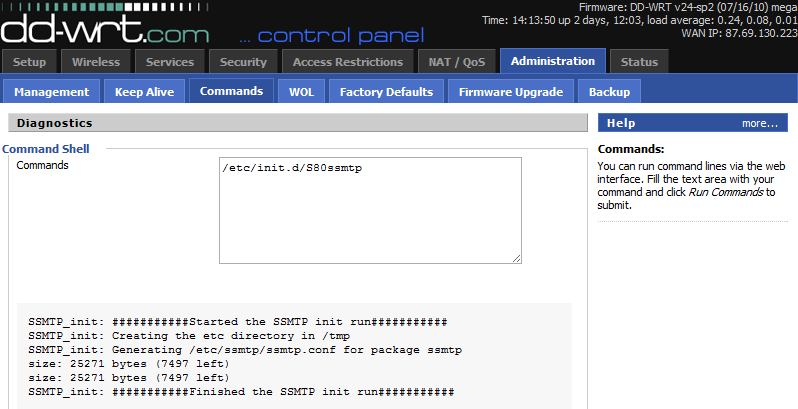
/etc/init.d/S80ssmtpThen hit “Run commands” again.
The output of this command should look like:
Test that you can send Email
Again paste this into the “commands” text-box the following command with your email address:
echo "testing crucible emailing 123 qwe" | ssmtp -vvv your@email.comThen hit “Run commands” again.
Because we used the -vvv option for extra verbosity, the output of this command should look like:
If everything went well, you should be getting the test email within seconds.
We hope that you can use this information to push your home router’s limits even further then you thought possible and you now truly control your home router, and DD-WRT…
Linux extends life, Linux expands consciousness… Linux is vital for packet travel




 Posts
Posts


